
Share a label printer with a second computer
Is your label printer plugged into one computer over USB, and do you want to print to it from a second computer? In LumenLabel you turn on sharing on the computer with the printer, copy a pairing text and paste it on the second computer. After that the printer simply shows up in the printer list there.
It works between Macs and Windows PCs, only inside your own local network. Allow a few minutes.
Updated
What you need
- Two computers on the same local network, over Wi-Fi or cable.
- The same version of LumenLabel on both, 0.5.5 or newer, with an active licence or trial.
- A supported printer plugged into one of them over USB and already added in LumenLabel there.
- A way to get a piece of text from one computer to the other, such as an email or chat message to yourself.
On the computer the printer is plugged into
Have the second computer switched on with LumenLabel open. The pairing text from step 3 is only valid briefly.
Open Settings and choose Print connection
Click the gear icon at the top right. Choose the Print connection tab on the left. Under Printers on this computer you see the USB printers you have added in LumenLabel.
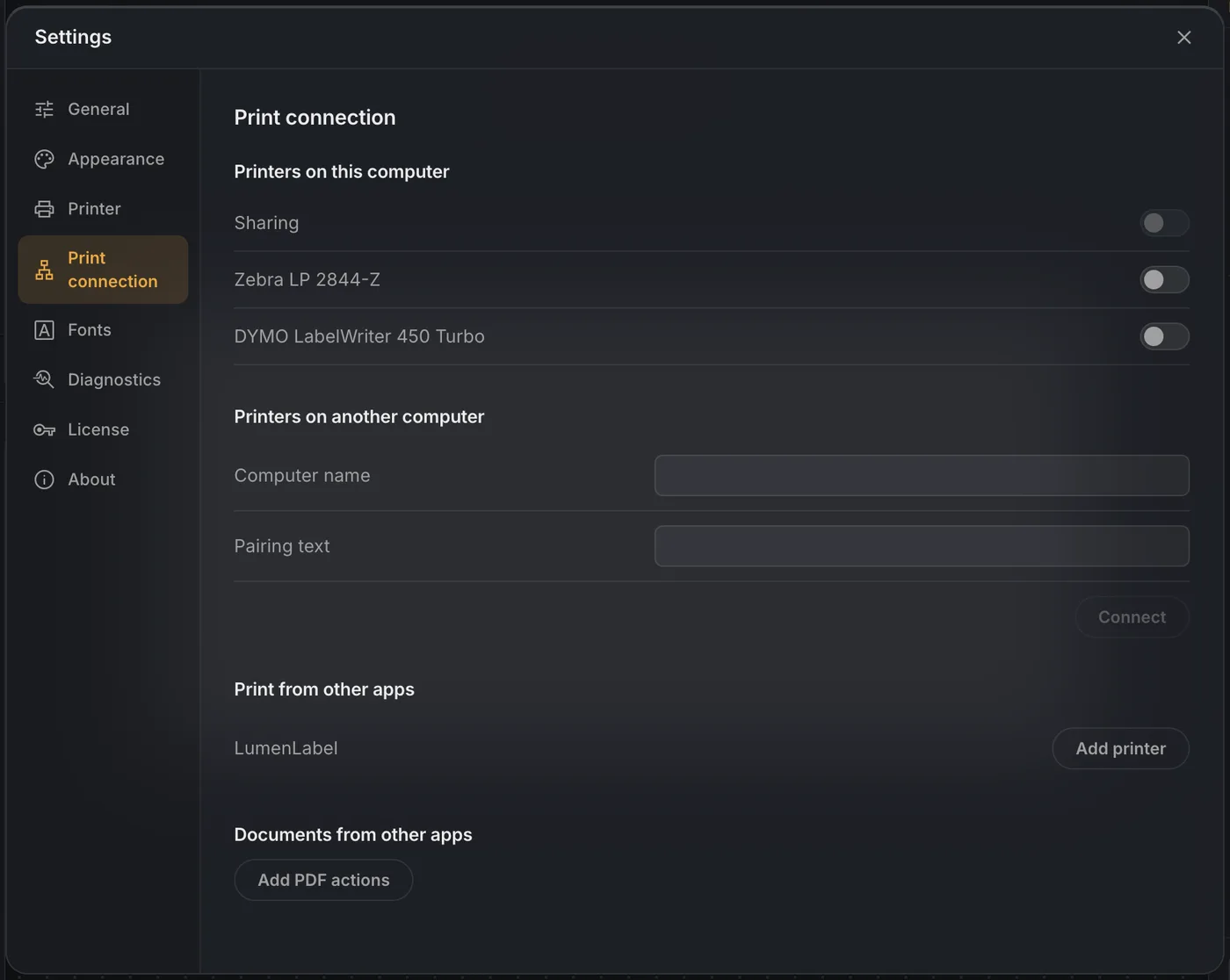
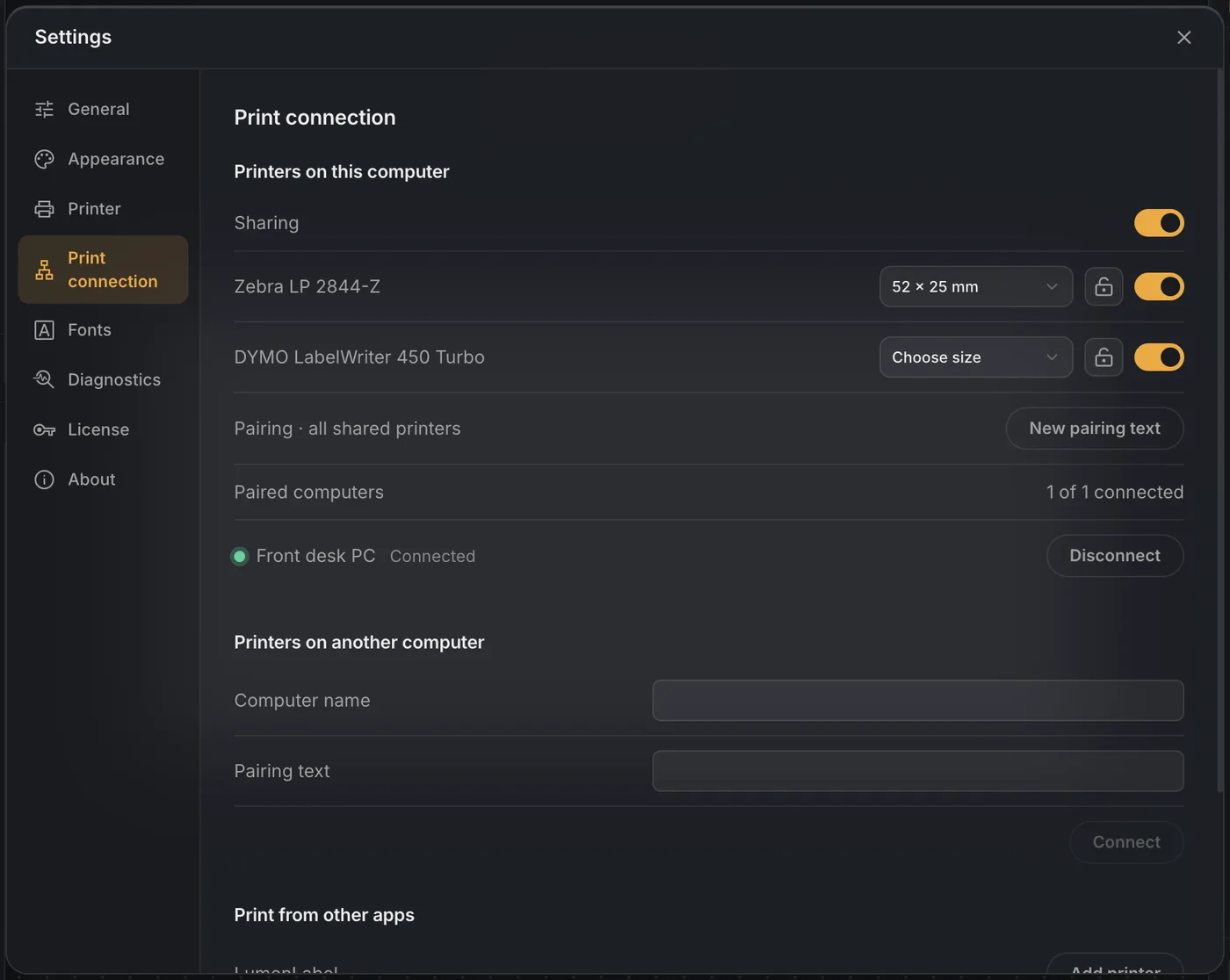
Choose which printers to share and turn on Sharing
Turn on the switch next to every printer you want to share. Then turn on Sharing at the top. That switch only works once you have chosen at least one printer. Each shared printer now shows its label size and a padlock.
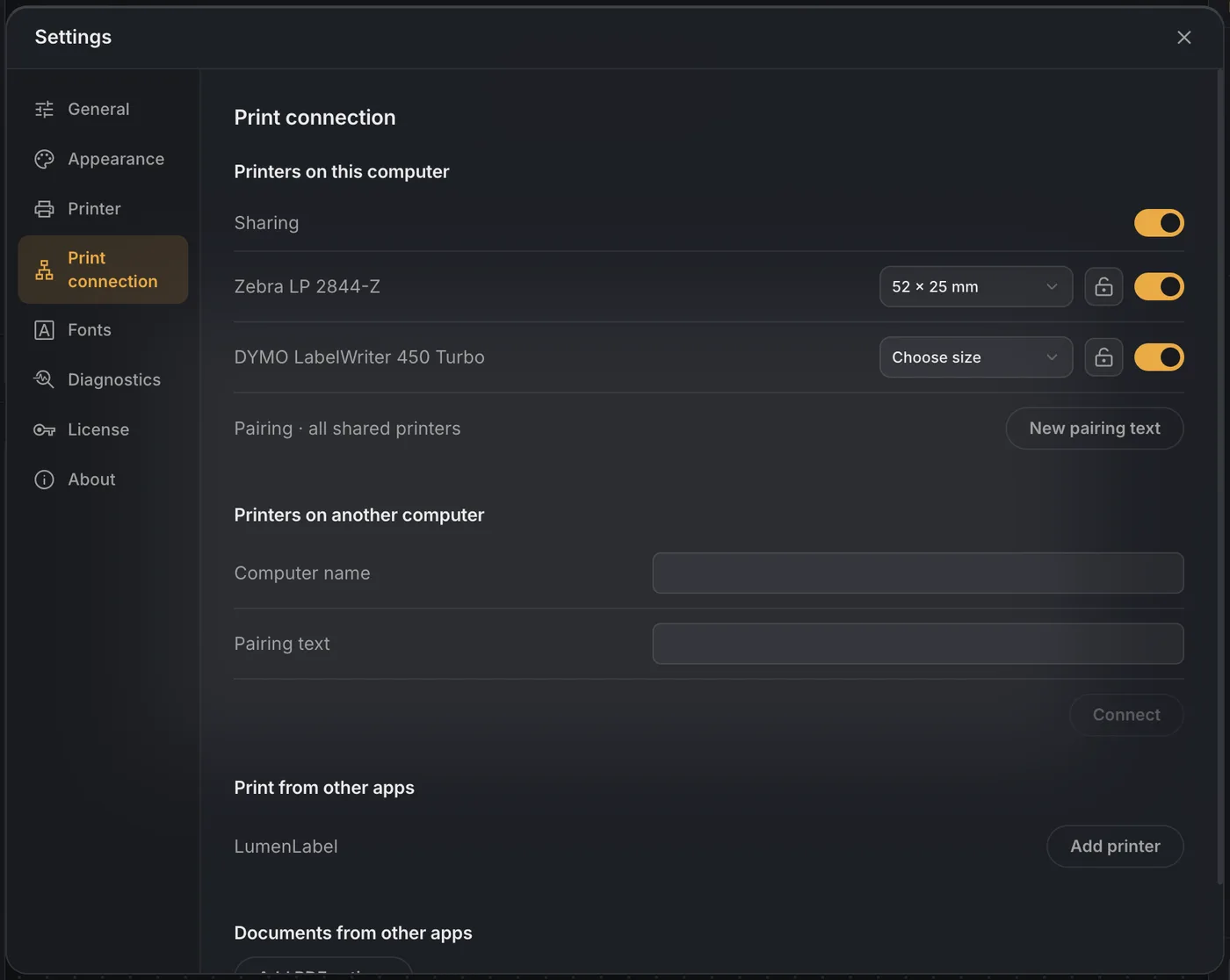
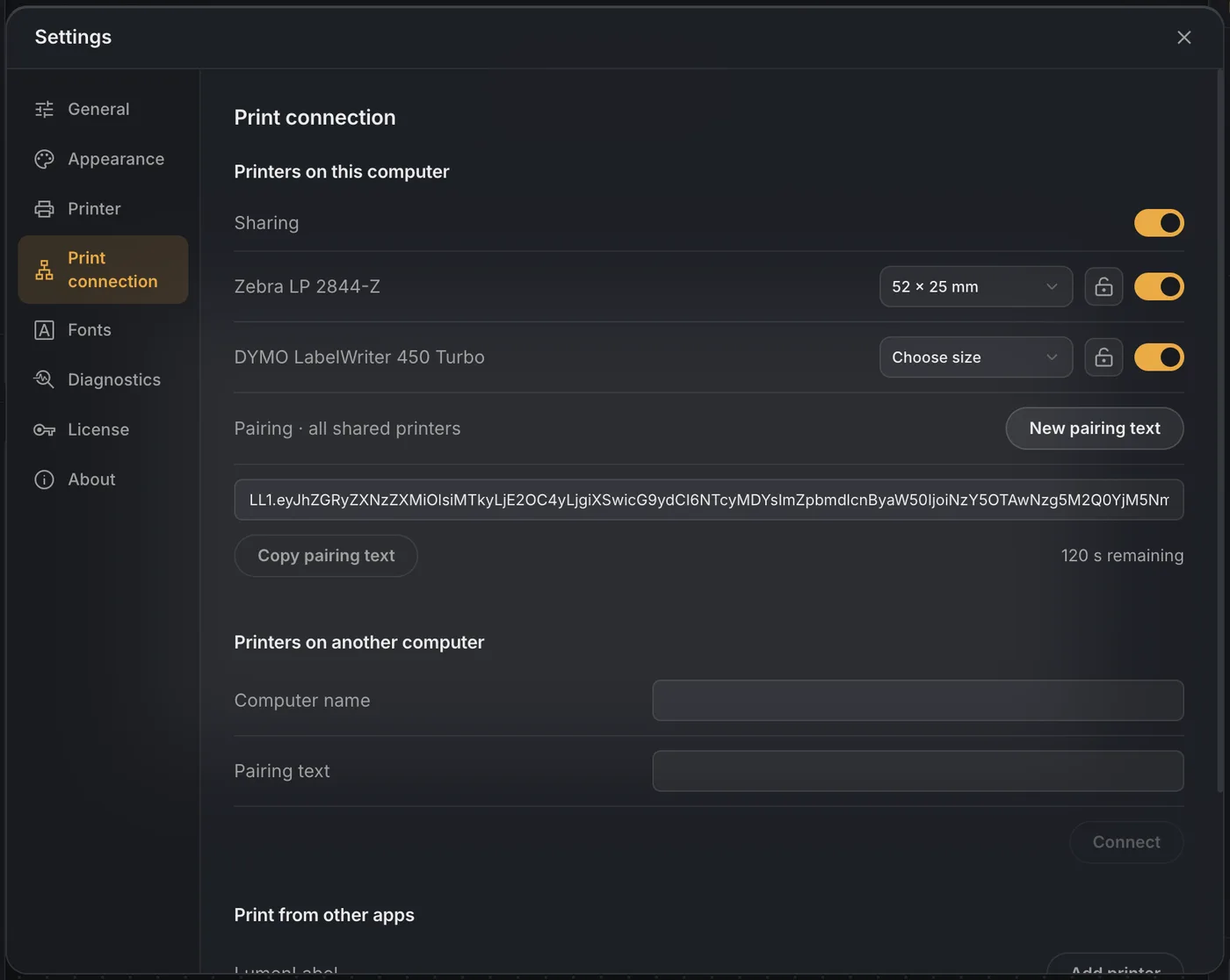
Create a pairing text and copy it
Click New pairing text. A long text starting with LL1 appears. Click Copy pairing text and send the text to the second computer. The pairing text is valid for 120 seconds and works once. Too late? Just click New pairing text again.
On the second computer
This is the computer without a printer cable.
Open Settings and Print connection here too
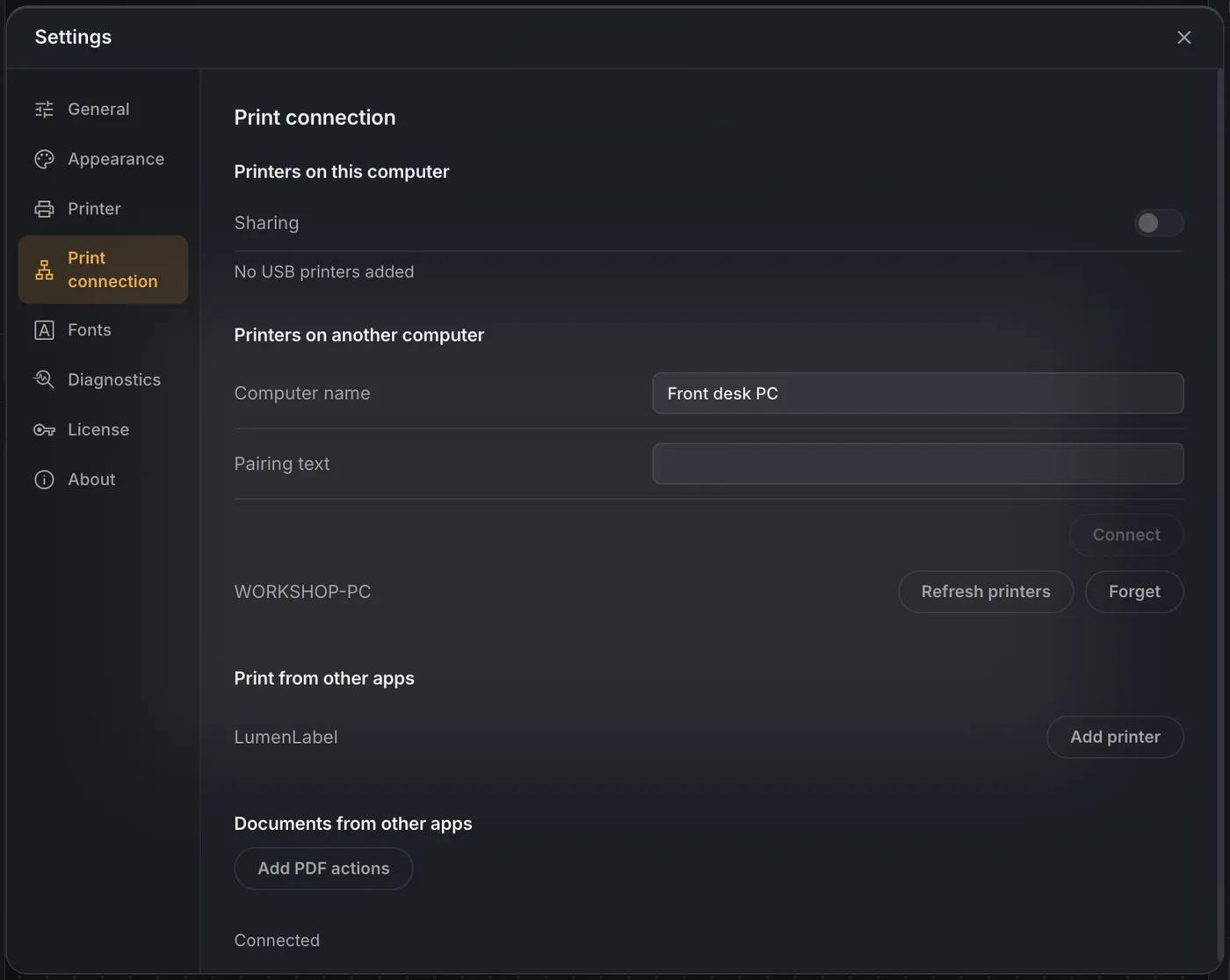
Go to Printers on another computer. Under Computer name, enter a name you will recognise this computer by, for example Front desk PC. The other computer will show that name in its list. Paste the pairing text into the Pairing text field.
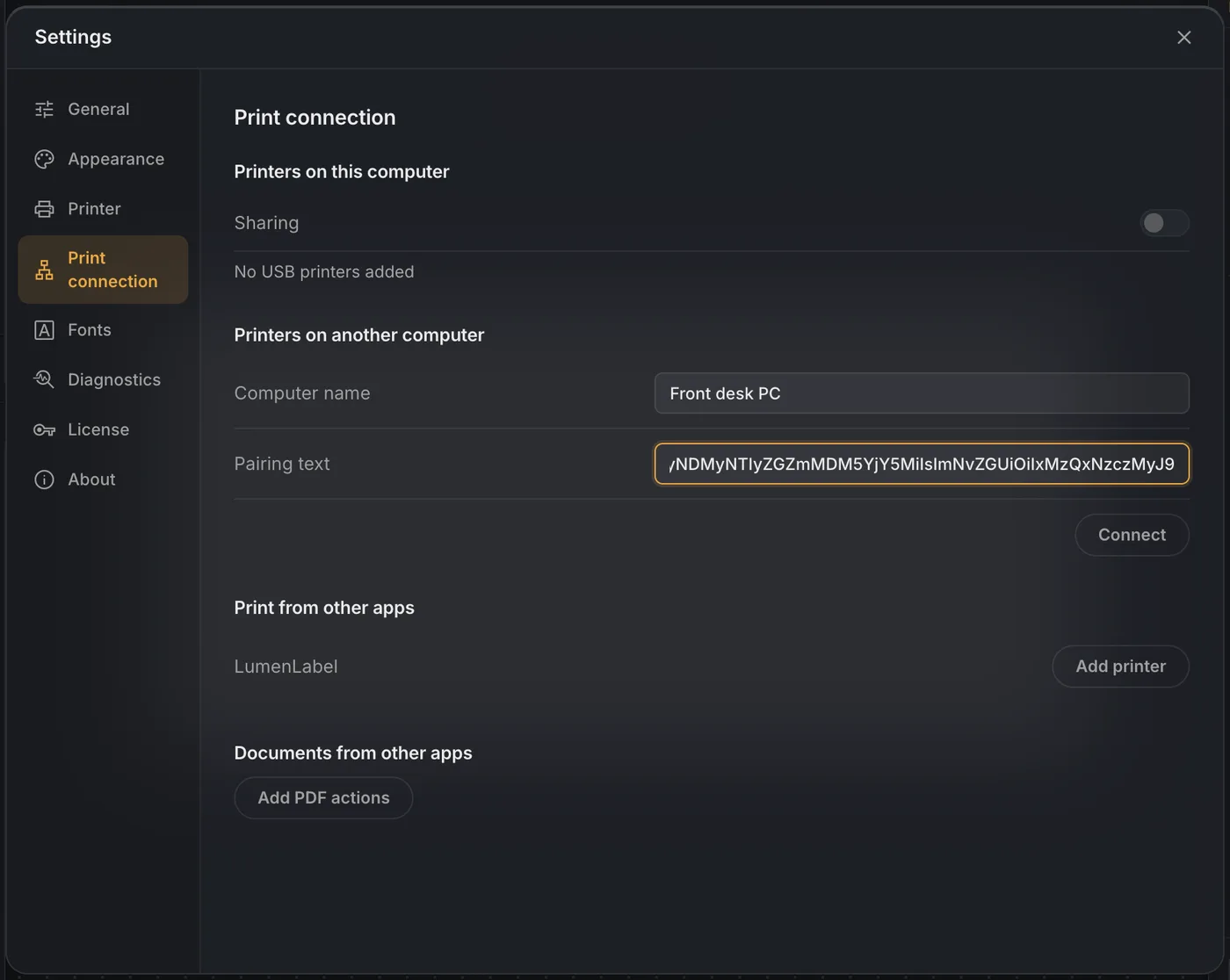
Click Connect
Connected appears at the bottom and the other computer is listed. Refresh printers fetches the printer list again later, for example when a printer has been added on the other computer. Forget removes the pairing from this side.
Pick the shared printer and print
Close Settings. The shared printer is now in the printer picker at the top right, with the label LumenLabel Print Host next to it. Print the way you are used to from Design, Data or Shipping.

Check the pairing on the first computer
On the computer with the printer, Paired computers shows which computers are paired and whether they are connected right now. Disconnect removes a computer again. It can no longer print until you pair it again.
Want the second computer to be able to print only?
The label size and printer settings of a shared printer belong to the computer the printer is plugged into. By default the second computer may change them, as if the printer were plugged into that computer itself.
Click the padlock next to a printer to lock the settings. The second computer can then only print, choose the number of copies and see the status. The label size is fixed to what you chose. With a continuous roll only the width and the type of roll are fixed; the second computer chooses the length.
Good to know
- The computer with the printer has to be on
- LumenLabel has to be running there. You may close the window. As long as sharing is on, LumenLabel stays active in the background, with an icon in the system tray or the menu bar. After restarting that computer, start LumenLabel again.
- Only inside your own network
- Printer sharing does not work over the internet, nor over a VPN service such as Tailscale. Connections from outside the local network are refused. The connection between the two computers is encrypted.
- Your other software keeps working
- On Windows, LumenLabel prints through the same printer entrance as Windows itself wherever it can. Programs that already print to that printer can then keep doing so. Test it during the trial with your own software.
- The second computer sees the status
- When the labels have run out or the lid is open, you see that on the second computer too, as far as the printer reports that status itself.
- Is your computer asking for permission?
- If Windows or macOS asks the first time you share whether LumenLabel may accept connections on your network, allow it for your own network.
If it does not work straight away
- I see Pairing text expired, or the pairing code is not accepted.
- The text was older than 120 seconds or had already been used once. On the computer with the printer, click New pairing text and paste the new text.
- It says the printer profiles differ.
- The two computers are running different versions of LumenLabel. Update both to the latest version and connect again.
- The second computer cannot find the printer computer.
- Check that both computers are on the same network. A guest network or separate visitor Wi-Fi is often shielded from the rest. Also check that LumenLabel is still running on the computer with the printer and that Sharing is on there.
- The label sizes or settings do not come across properly.
- Turn Sharing off and on again on the computer with the printer, and click Refresh printers on the second computer.
- The shared printer shows as offline.
- That is the status of the printer itself. On the computer it is plugged into, check that the printer is switched on and the USB cable is in.
Try it with your own printers.
Printer sharing works in full during the 7-day trial. Install LumenLabel on both computers and see whether it does what you need on your network.