
LumenLabel 0.6.7
Much of this came from you. Thank you!
Printing
- Zebra printers print smoothly, without pulling back
- Peel-off mode: LumenLabel waits until you take the label
- One Print button; if it doesn't fit, choose scale or resize
Labels
- Custom label sizes straight from the size picker
- LumenLabel remembers your label sizes per printer
- QR codes and barcodes fill their box
- Shapes print at their real size
- Double-click a label file and it opens
- Font sizes in real points: what used to say 12 pt now says 9 pt; your labels print exactly the same
Data
- Spreadsheets import as they are
- Thousands of labels in one go stay smooth
Printers
- DYMO LabelWriter 400 no longer gets stuck
- DYMO and Brother set themselves up
- Zebra GK420d and GX430t recognised
- Brother QL-1100 uses its whole print head
- No more false “offline”
- New: DYMO LabelManager PnP (Mac)
Updating
- Updates with a progress bar; if the download is interrupted, just try again
- After an update you see what's new
- LumenLabel cleans up its old installers
- A new version shows up as soon as LumenLabel starts
Windows
- The update button installs the update (download 0.6.7 once)
- Adding a USB printer no longer hangs
- LumenLabel opens right after installing
- While an update installs, a window shows it is busy; if it fails, just try again
Other
- Paste with Cmd+V works everywhere
- Offline for a long time? LumenLabel says it's the connection, not your licence
- Support → Send to Support attaches a report
What's new in LumenLabel 0.6
If you are updating from LumenLabel 0.5.6, this is what is new in 0.6. Under Good to know you'll find two things that now work differently.
A new printer window
It has two tabs, “My printers” and “Add printer”. You add a printer by choosing its brand and model.
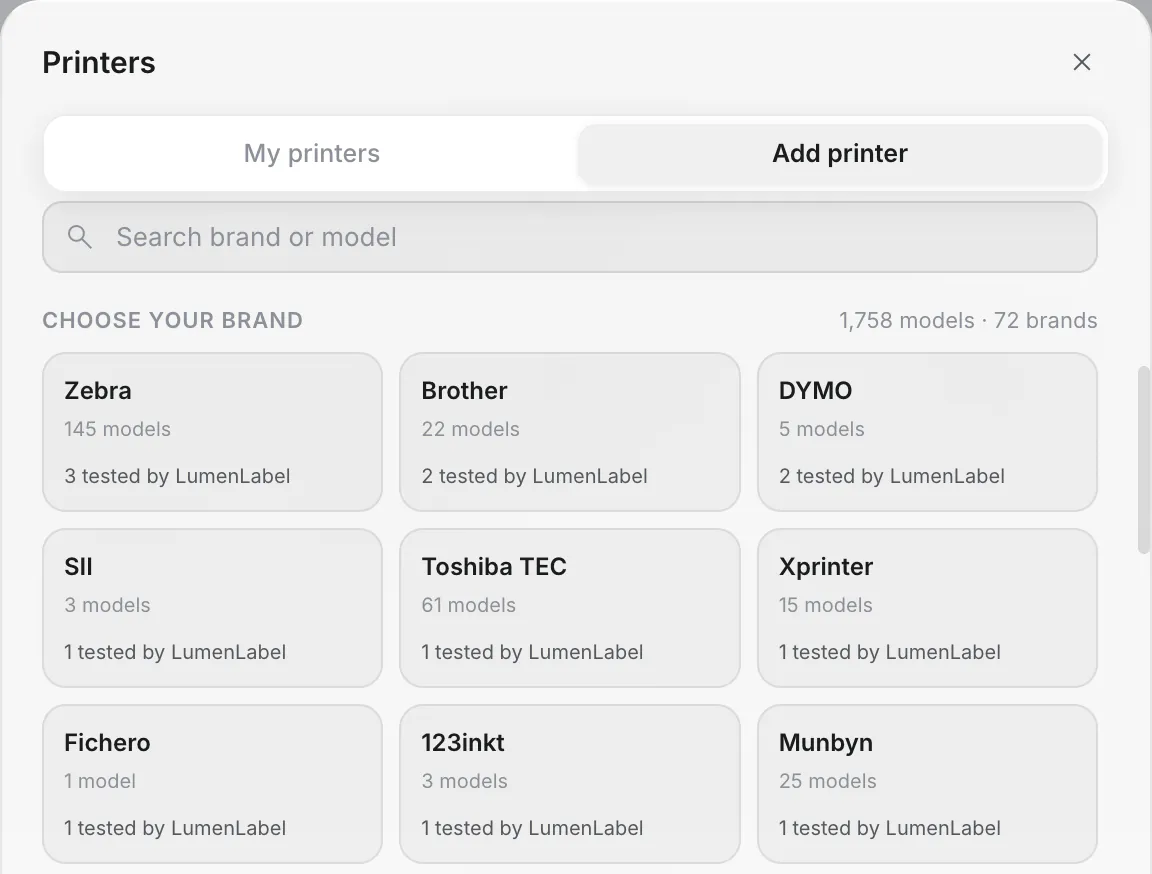
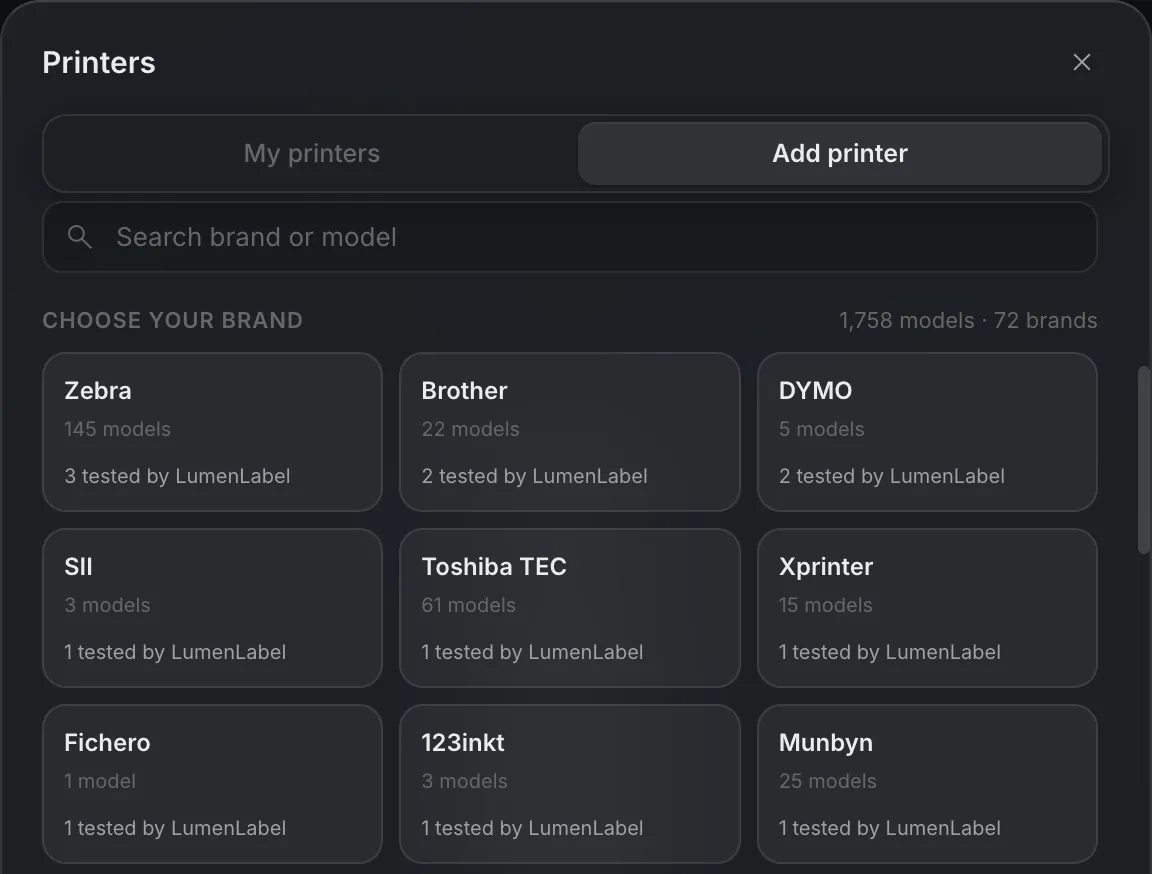
Printers that are not in the list
LumenLabel works out which language your printer speaks, prints a test label and keeps the setup that works. If that fails, you can set it up yourself: language, resolution and width.
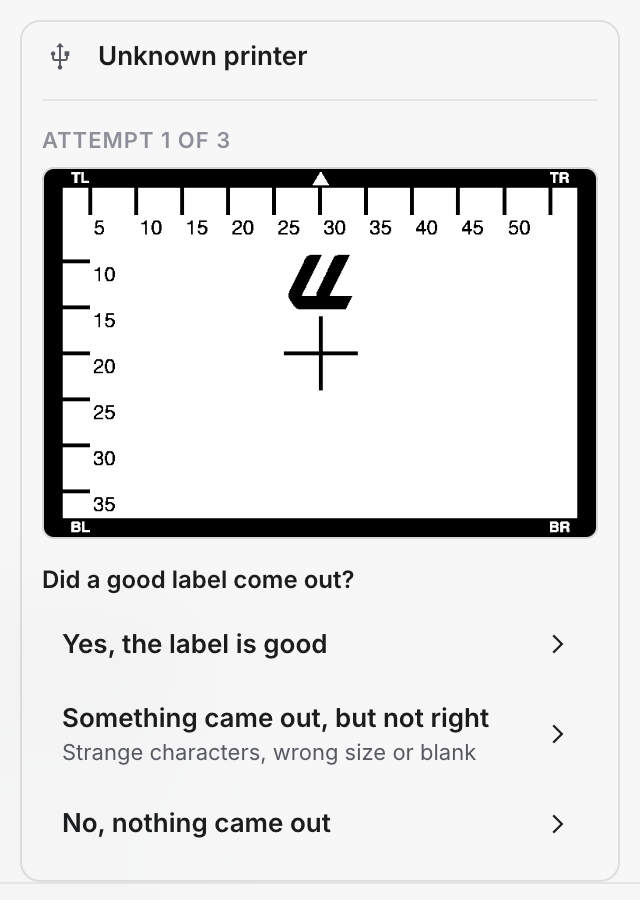
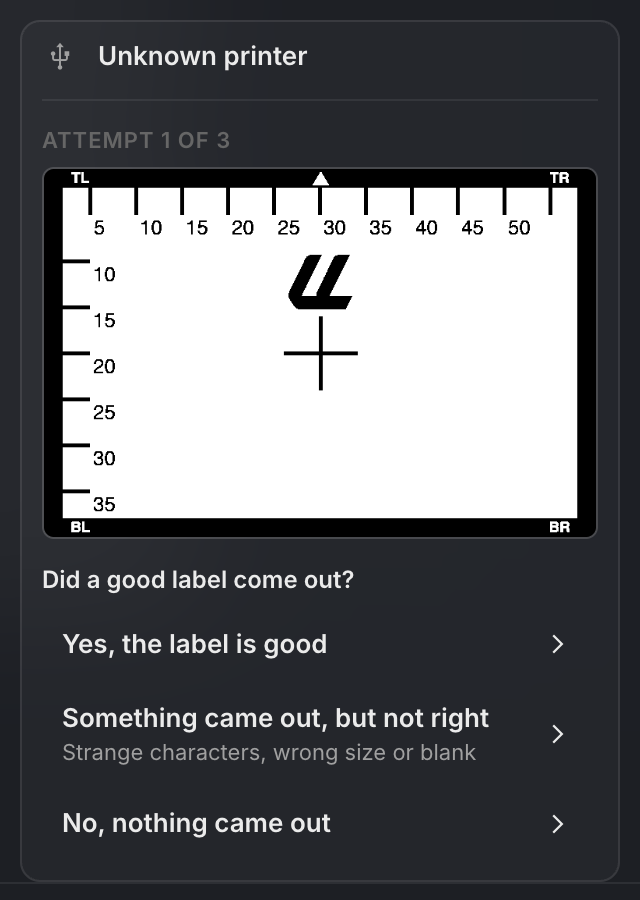
A USB printer LumenLabel did not know. After the test label, it asks how the label came out. Your own names for saved printers
Give each saved printer a name of your own. Two identical printers stay separate.
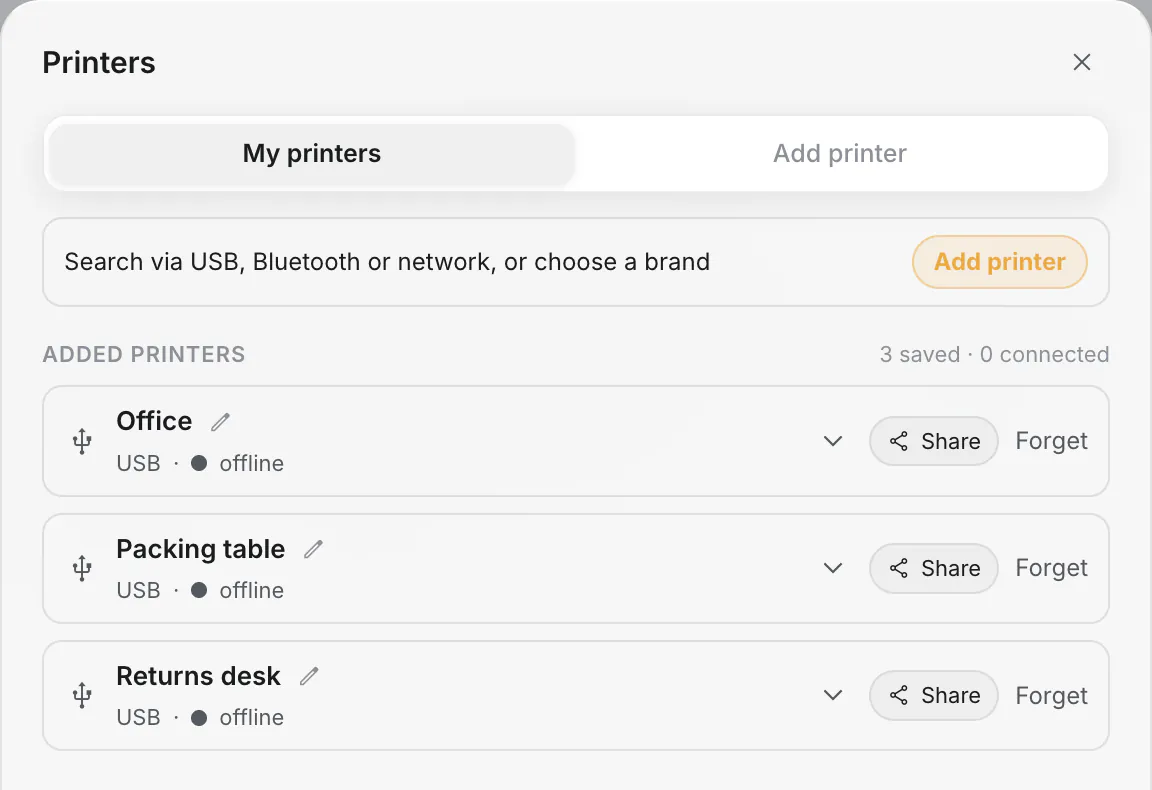
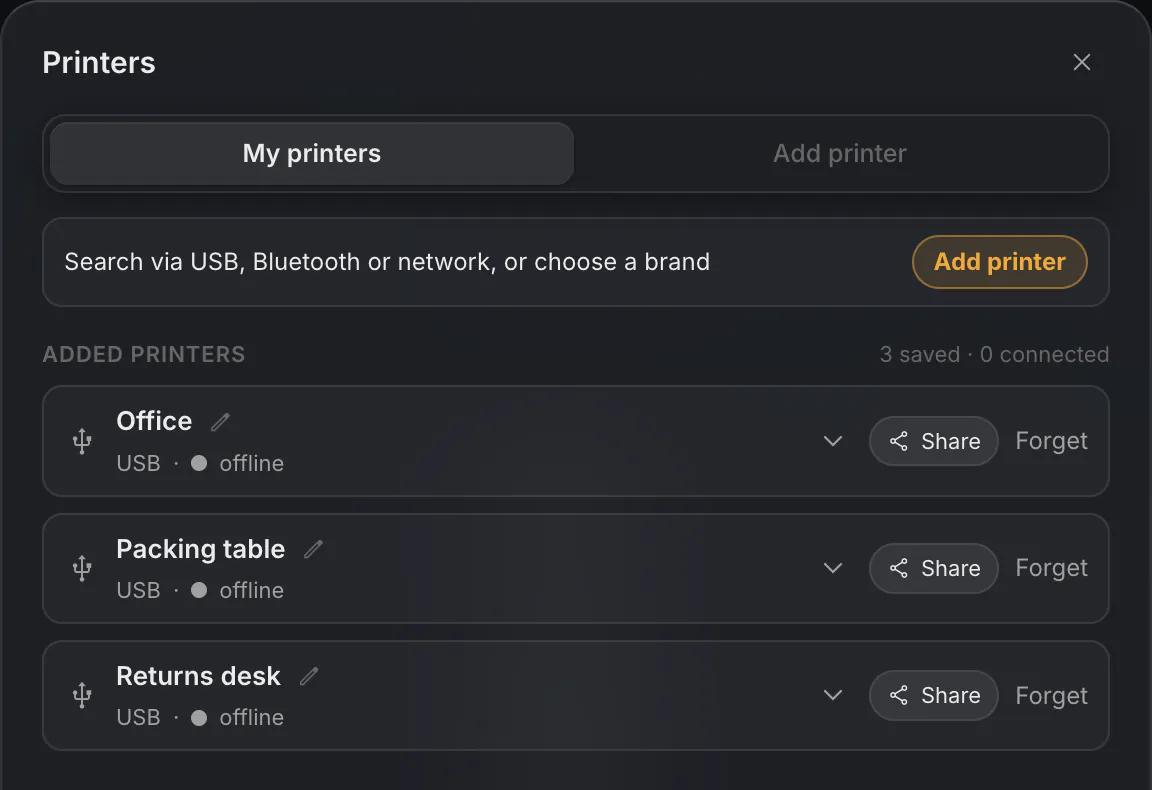
Packing table and Returns desk are two identical Zebra ZD220 printers. Many more icons
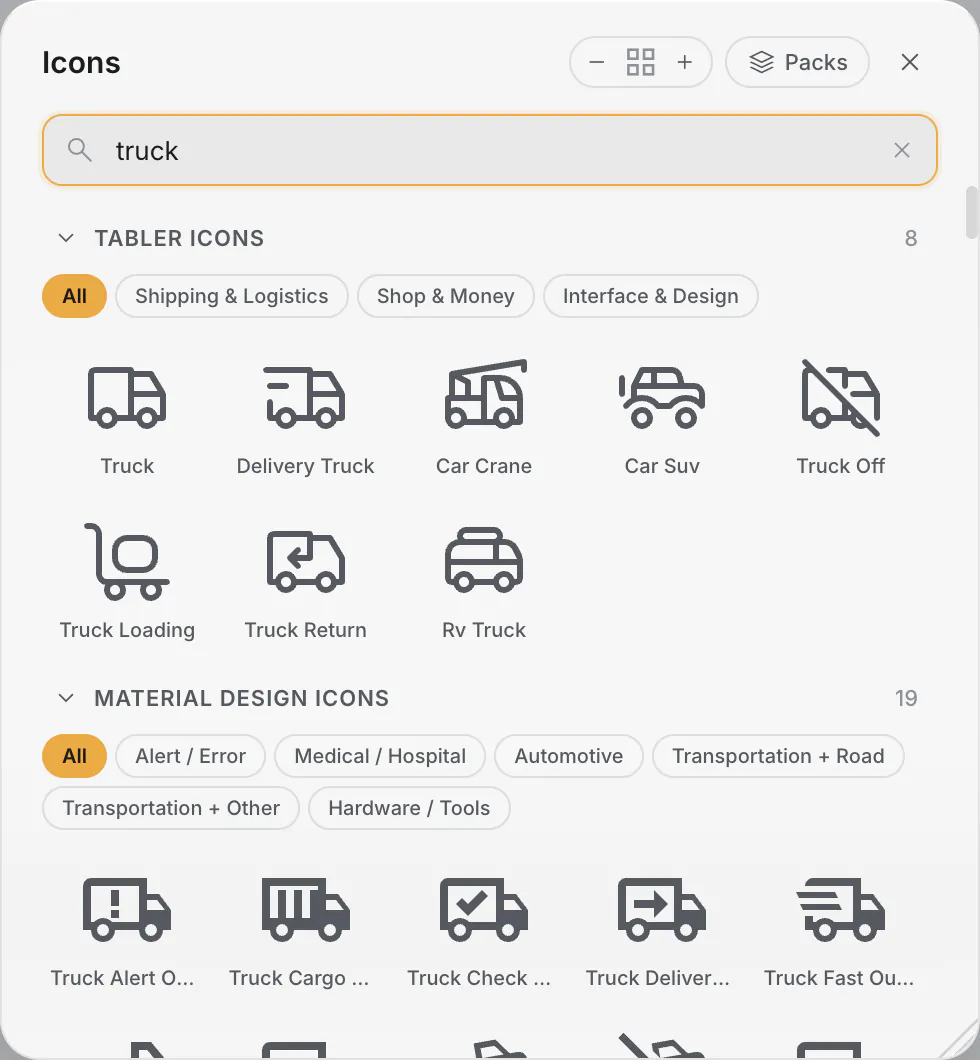
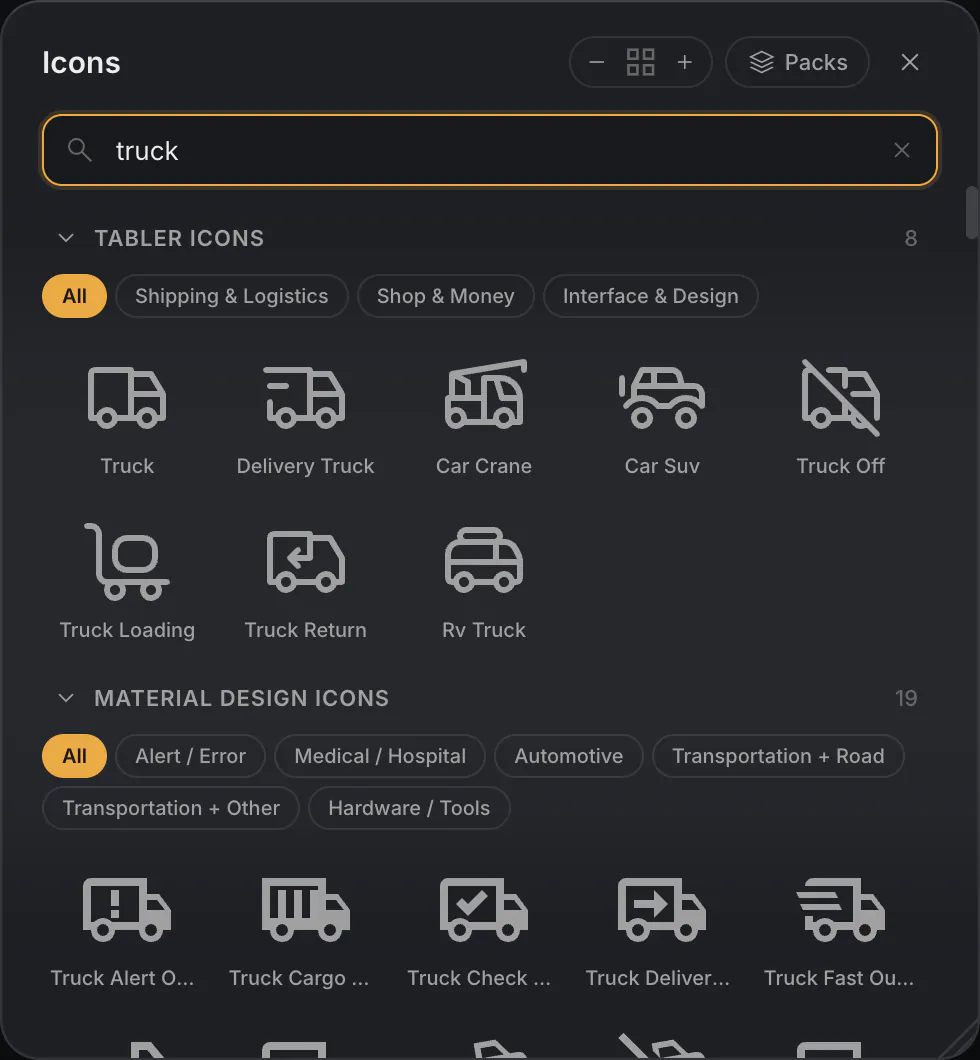
Optional icon packs can be switched on or off, and icons from a folder of your own show up under “My icons”. Search works in English and Dutch.
PDF pages on labels
In Design and Data you can place PDF pages on a label and choose which pages. A password-protected PDF asks for its password.
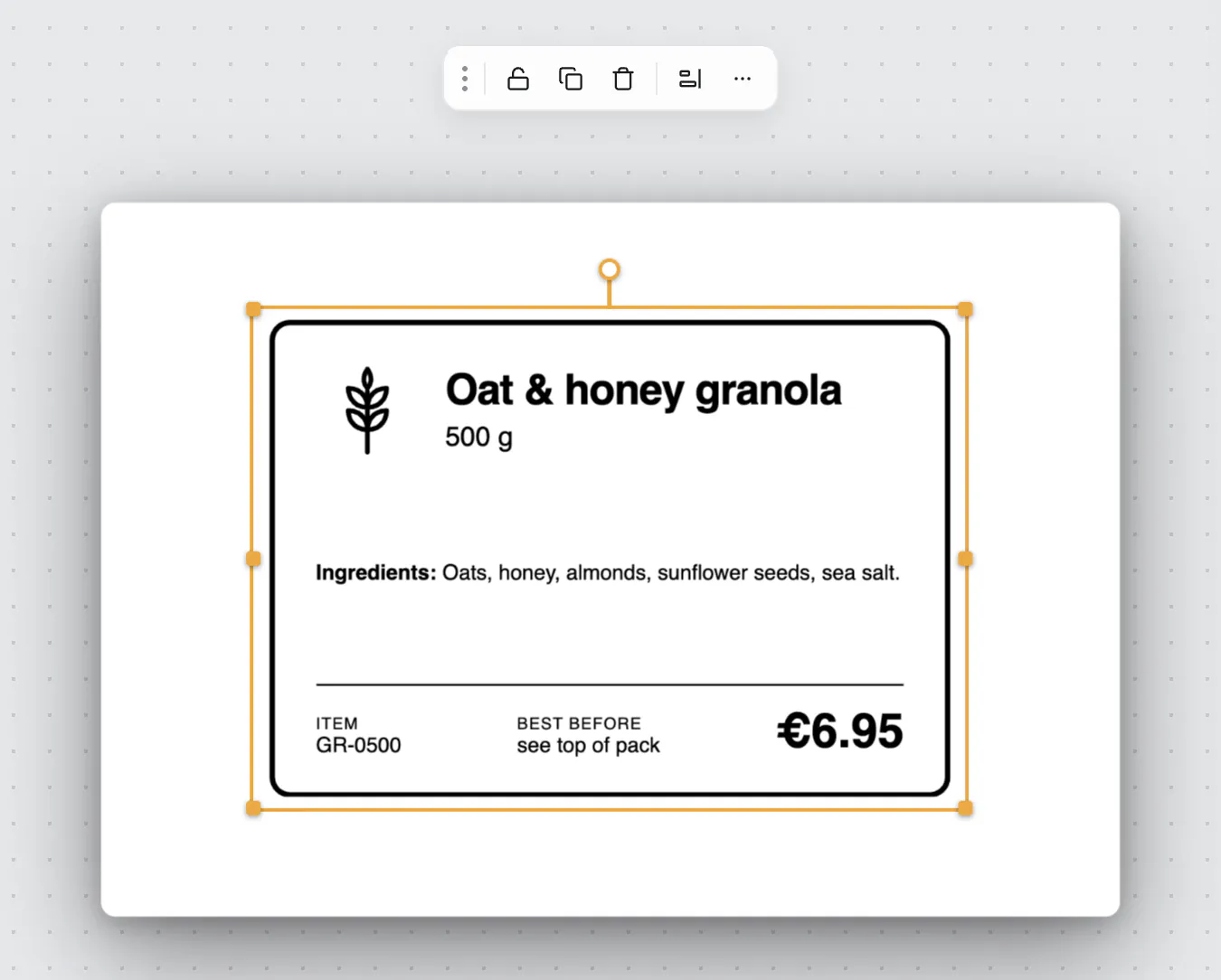
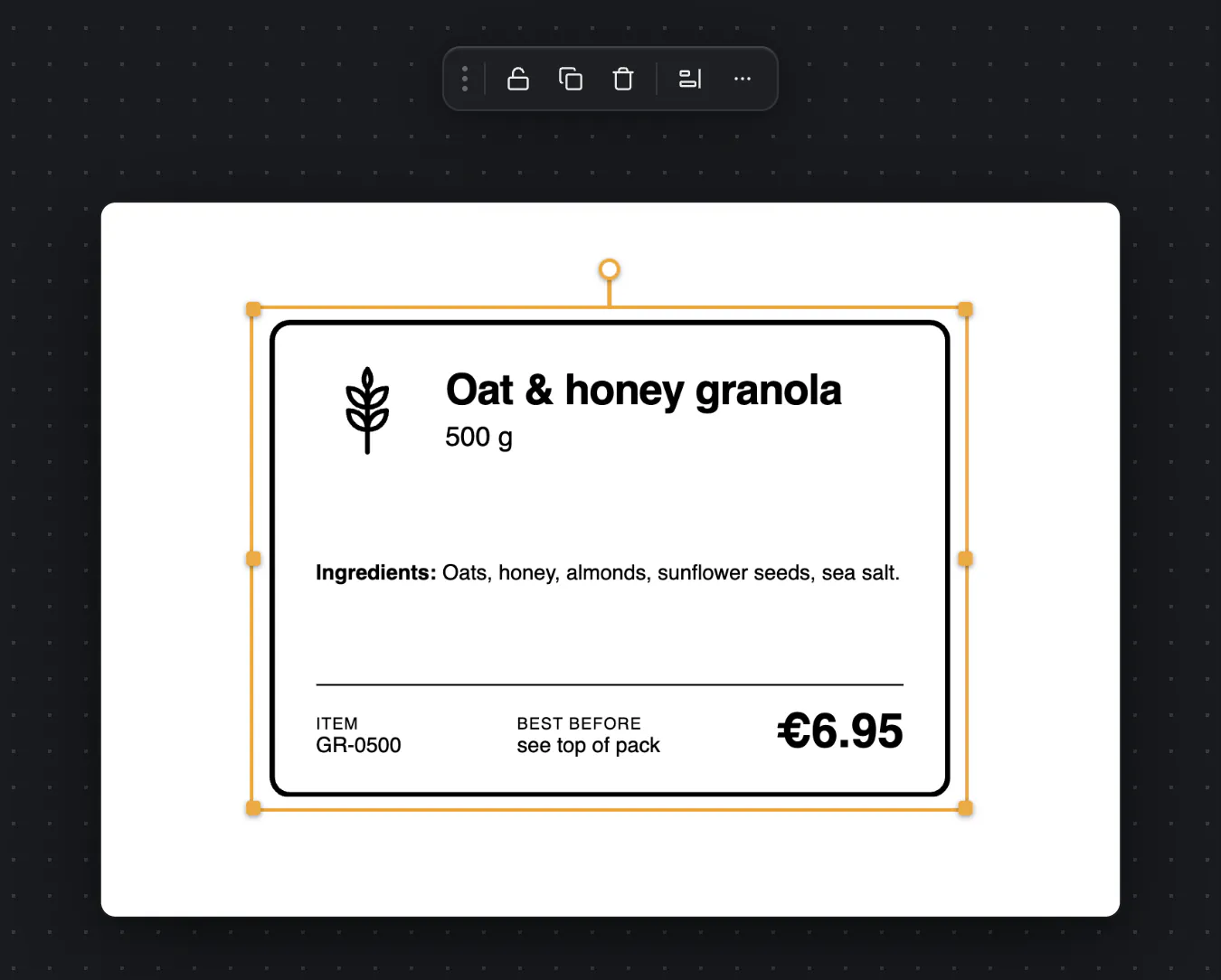
Page 1 of a three-page PDF, placed on a 100 × 70 mm label. Sharper barcodes and QR codes
Barcodes and QR codes now print on whole printer dots, which makes them sharper. That stays true after you switch printers.
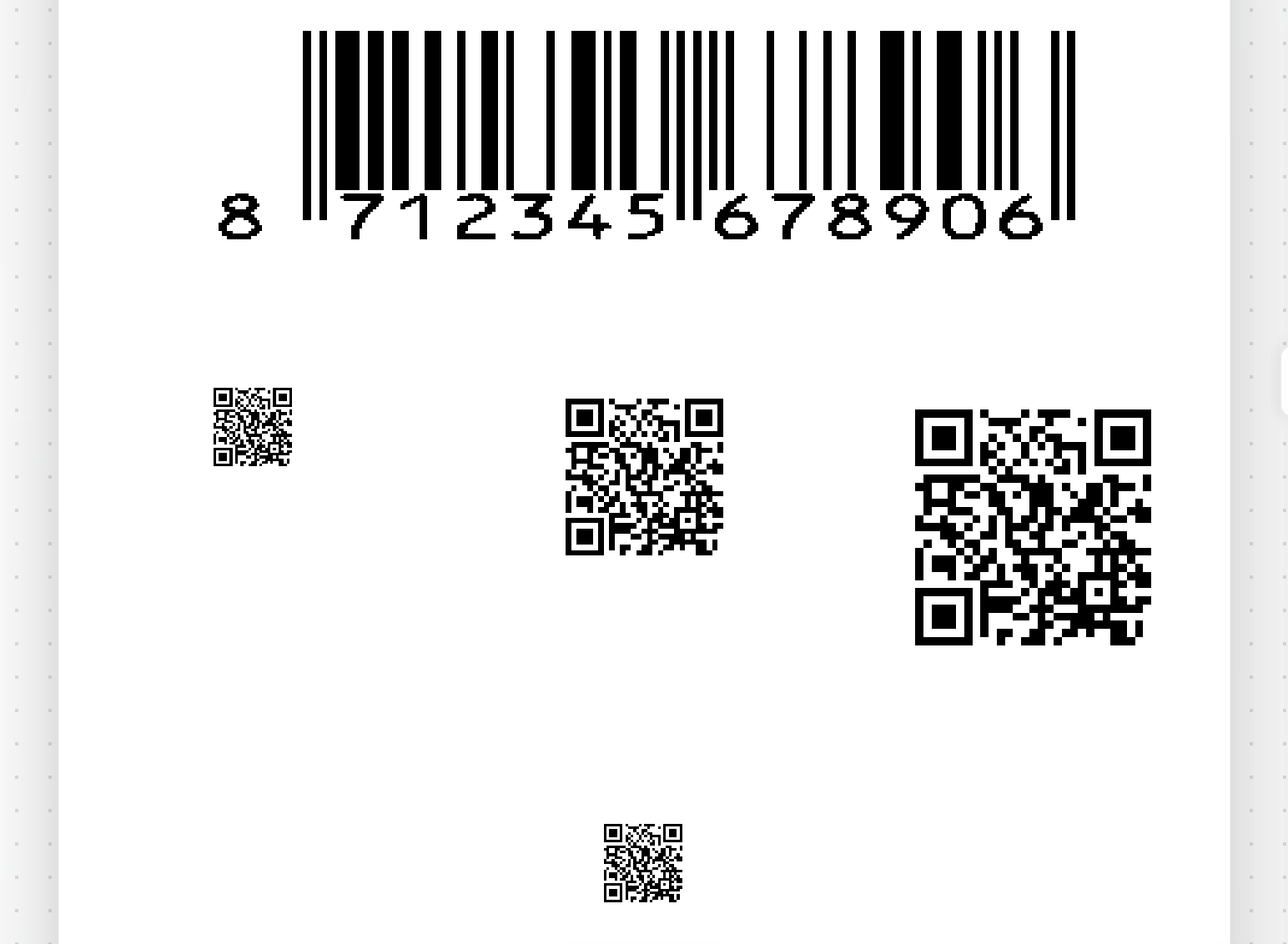
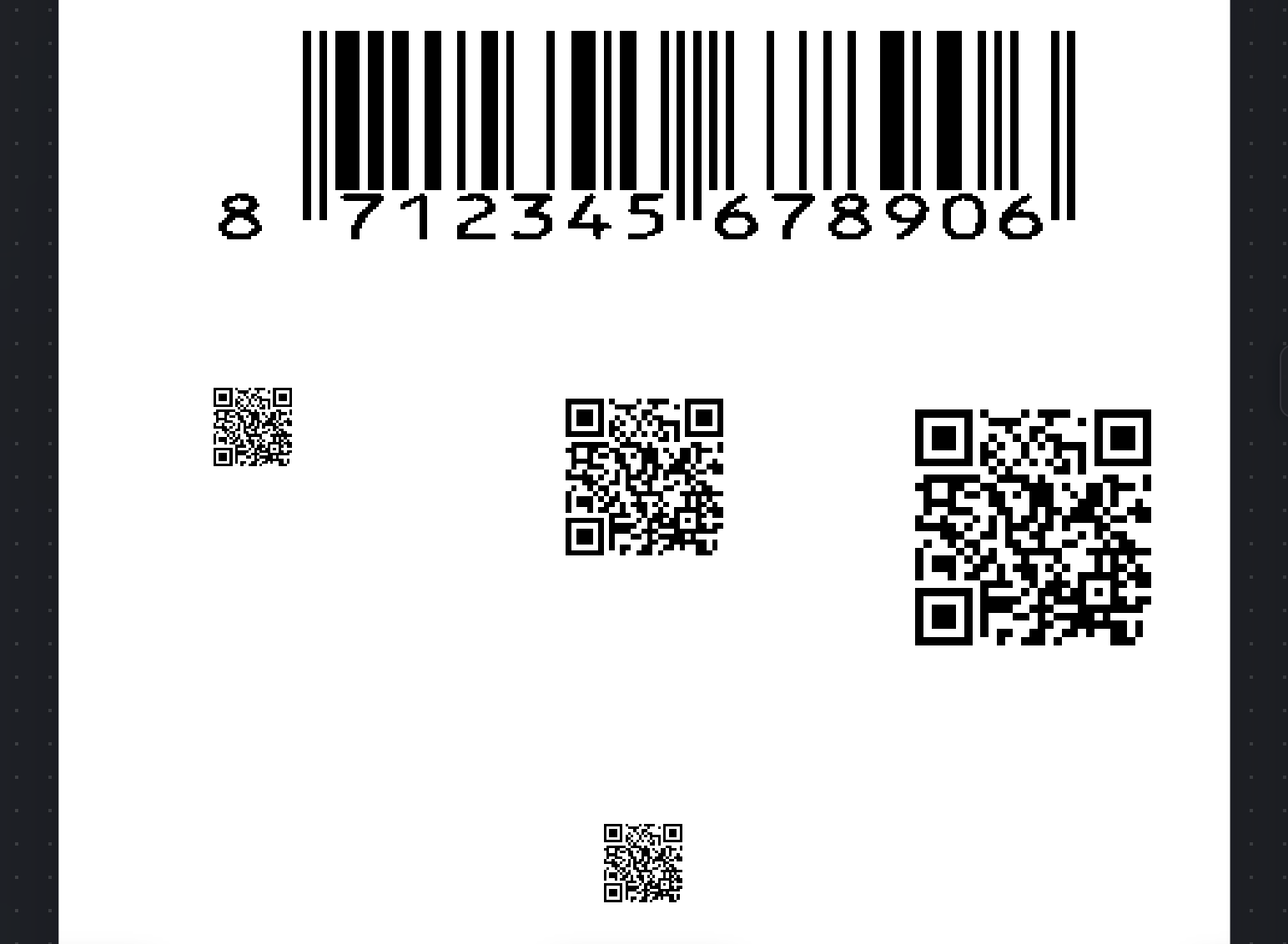
The print preview, zoomed in: every bar and every QR square is made of whole printer dots.
Good to know
- “Use printer” only appears for a printer that is connected.
- The printer you choose stays chosen. LumenLabel no longer switches to another printer by itself.