
My first tester had a printer I did not know. And it was plugged into a different computer.
Since version 0.5.5, LumenLabel can share a USB label printer with a second computer on the same network, while the rest of your software keeps printing to that printer as usual. This is the story of how that got in.
The website had only just gone live.
The first version that really went out was finished. Or so I thought. The website was online, the download worked, the licence worked. I was over the moon.
My in-laws run a car garage that also sells parts. My brother-in-law was one of the first to say: I'll give it a try. Brilliant. He downloaded the app and the installation went fine.
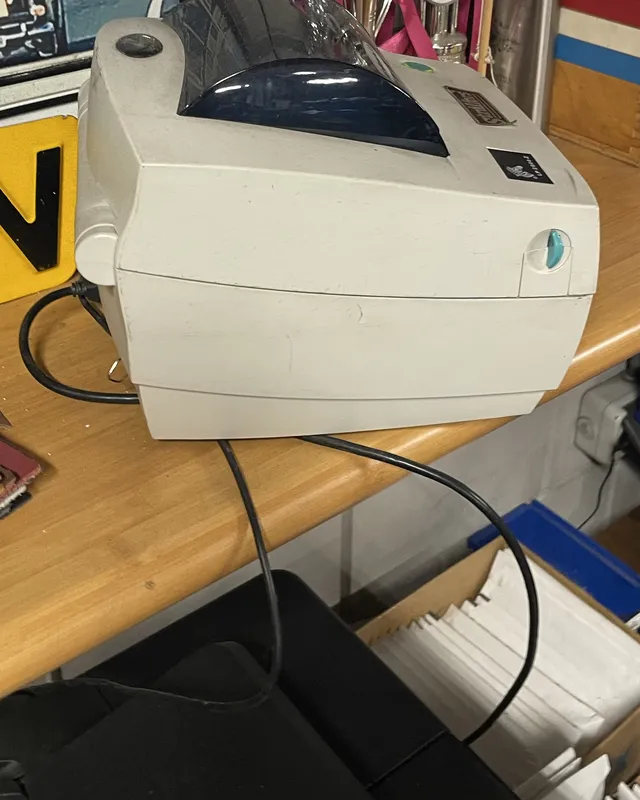
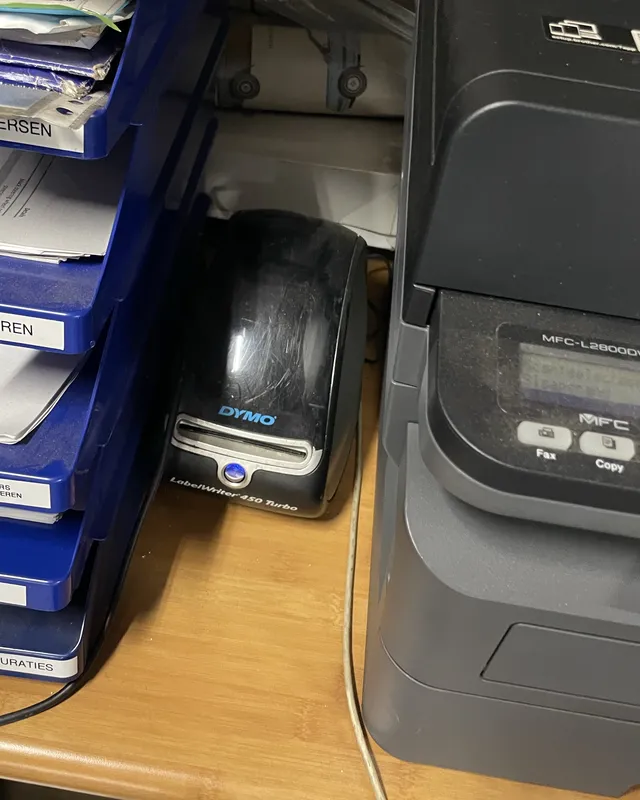
Only LumenLabel could not see his printers. There was a Zebra LP 2844-Z, an older version that was not on my list yet, and a DYMO LabelWriter 450 Turbo. That Turbo still makes me smile. And there was something else. Those printers were not connected to his computer at all. They were plugged in over USB to my father-in-law's main computer and shared across the network through Windows. His own PC did not have a single printer cable in it.
I had thought about printer sharing before. There was even a small plan. But to me that was something for much later. And now the very first person who wanted to try the app ran straight into it. I was so grumpy.
So there I was, on my knees under the desk.
I thought: I'll just plug those two printers into my Mac and have them working in no time. Sharing can come later.
It is a garage that has been there for a very long time, and so have the computers. With everything that comes with that: dust, grease, stacks of paper. I turned up in my normal clothes, because you don't need workwear for a computer. Or so I thought.
The Zebra's USB cable was three or four metres long. It ran behind stacks, through holes and corners to the back of the computer. From between the papers a DYMO suddenly appeared. It turned out my father-in-law mostly used it as a label dispenser. He presses the feed button, a blank label comes out and he writes on it by hand. Printing with DYMO's own software is too much hassle for him.
Meanwhile the business just carried on and they needed to print. So I waited for a quiet moment to borrow the printers. When I got up from under the desk my knee was pitch black. I also found a dead mouse. A computer mouse, luckily.
Half an hour later labels came out of both printers, from my Mac, straight over USB. So that part was not too bad. Then everything had to go back where it was, and that really scares me. Systems that have been running for years only need one wrong look to fall apart. But it went fine. Cables back, they could print again.
A pairing text, and only inside your own network.
At home I started on printer sharing. My brother-in-law's computer had to be able to print through my father-in-law's computer. A client and a host.
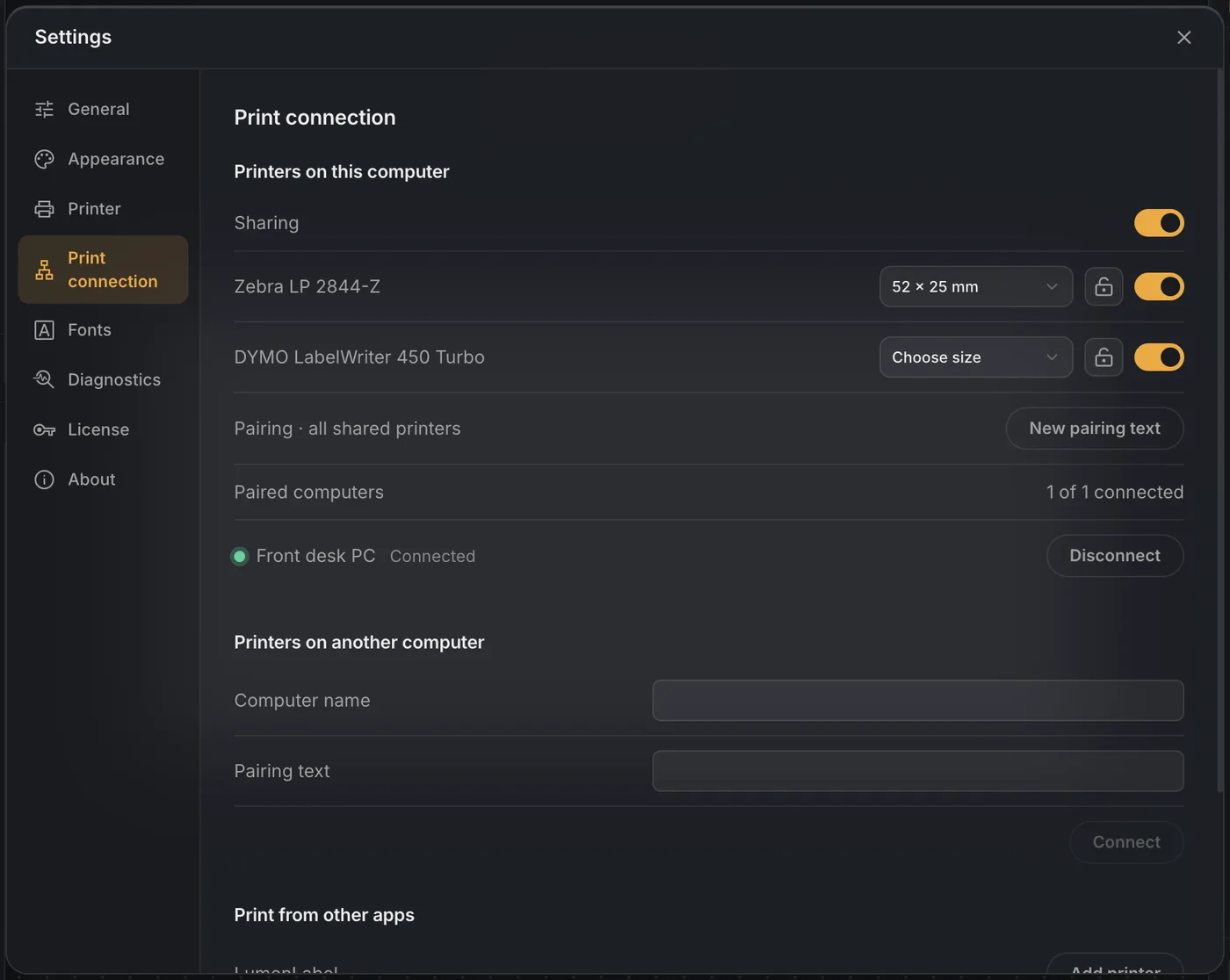
I did not want to do that through the regular Windows printer sharing, because in my experience that is exactly where things tend to break. And I care about it being safe. Nobody should be able to reach your printers from outside. So this is how it works: the computer the printer is plugged into creates a pairing text. You paste it into LumenLabel on the second computer and from then on those two trust each other. The connection is encrypted and only works inside your local network.
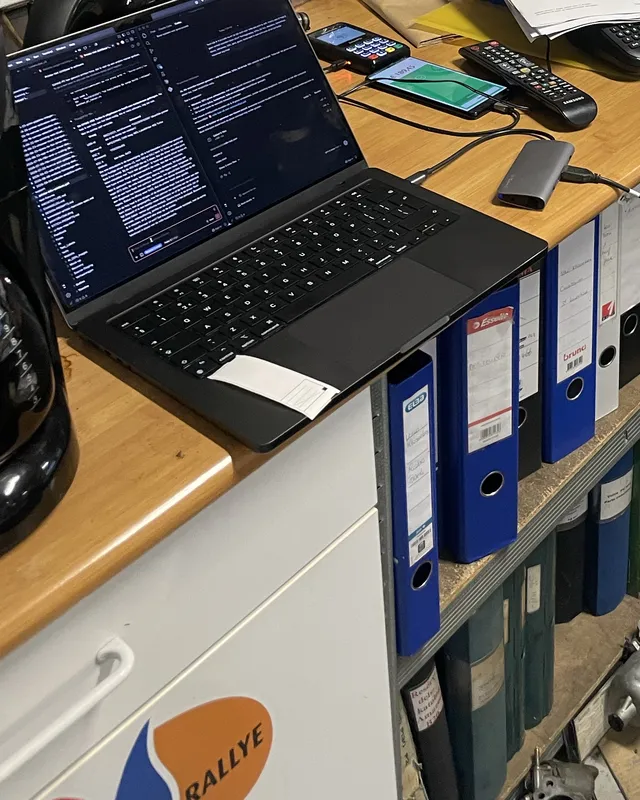
That part actually worked fairly quickly. I have a Windows computer upstairs in the attic and I develop on my MacBook. Before long I was printing from the MacBook downstairs to the printer upstairs.
Then the rest of the computer could no longer print.
The real problem was on Windows. As soon as LumenLabel took a USB printer into use there, that connection belonged to LumenLabel. Other software could no longer print to it. No shipping label from the carrier's program, nothing from the browser.
That was not an option. In that garage they have worked the same way for years and they are used to it. I want LumenLabel to add something. That every now and then they think: oh right, we can make a label with that too. And later: it can do this as well, and this. Not that on day one everything that already worked grinds to a halt.
This took me about a week and a half, and it was the most complicated part of all. Print queues, device names, two programs wanting the same printer. What came out of it: wherever possible, LumenLabel prints through the same entrance Windows itself uses. Then they sit side by side and the rest of the computer does not notice a thing. For printers Windows has no driver of its own for, a small helper takes the printer for one print job and hands it back afterwards.
Along the way a lot got added. The label size and the settings live on the computer the printer is plugged into, and you can lock them there. The second computer can see when the labels have run out or the lid is open. My Zebra at home is the easiest printer I own. So I tested it on the hardest one, a Brother that prints black and red and wants to talk and listen at the same time while printing. That took a roll and a half. I laid 36 test labels next to each other before I believed it.
And then the antivirus showed up.
A week later, on a Wednesday, I went back to install it together with my brother-in-law. It did not work.
Their antivirus stopped the helper for the USB printers. Every single time. And Windows itself also shows a blue warning first for a new app it does not know yet, where you have to click More info and then Run anyway. I thought we were past that, but it only goes away once enough people have installed the app.
I spent two days getting it right. The helper was rebuilt as a regular Windows service. And I discovered that the installer contained eight small parts without a digital signature, while the outside was signed properly. Since then every part is signed and checked for every release, all the way into the installer itself. I also submitted LumenLabel to the maker of that antivirus so they can check it.
Friday morning. I must have shouted yes a thousand times.
Back again on Friday. On my brother-in-law's computer the installation made it through. In fits and starts, because along the way the antivirus kept grabbing a temporary file to check it for itself. Nothing wrong, it would say. And then again at the next file.
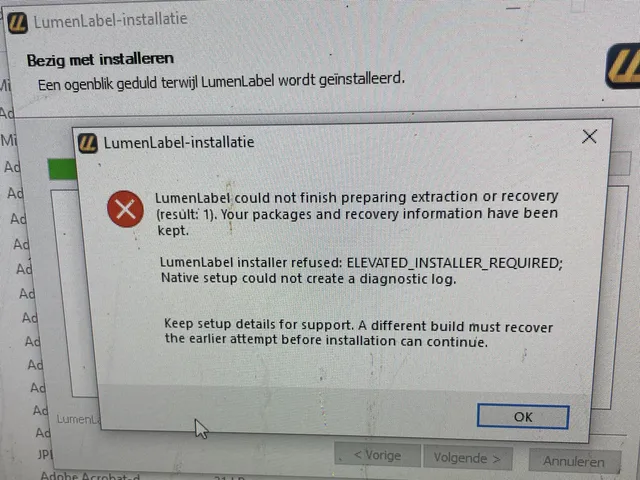
On my father-in-law's computer the installation got completely stuck, with an error message I could do nothing with. Meanwhile they both had to keep working and printing. I found it rather hectic.
In the end it was not even the antivirus. A LumenLabel folder from the previous attempt was still on the computer, without the app inside. My installer saw that folder, assumed there was an existing installation and looked for a file that was no longer there. The error message did not say which file or which folder. That cost me half a day. Old folder gone, install again. Boom. Worked first time.
After that: sharing on, pair, and it worked. Two computers, two printers, one through the other. Changing settings from the second computer, printing a PDF, all of it. I was somewhat euphoric. And their own software still prints to the same printers as always, even with LumenLabel running.
What works now, and what does not yet.
Printer sharing is in LumenLabel from version 0.5.5, on Mac and Windows. The printer is plugged into one computer over USB, and a second computer with LumenLabel prints to it over the local network. From outside your network that is not possible. That is a deliberate choice.
Not everything is done. An antivirus may still want to check a new version first, because to such a scanner every new version is unknown again. The installation that got stuck on that old folder gets a fix in the next version, plus an error message that simply says which folder it is about. And LumenLabel as a printer in the print menu of other Windows programs is not in there yet.
I also came home with another wish. My brother-in-law prints a shipping label on a label that is longer than needed, and he wants the print at the top instead of in the middle. He then sticks the empty part below it over the edge of the box, as an extra seal. That is on the list now. It is still a wish, not a promise.
For you this story should be a lot shorter.
All that fuss with cables, antivirus and old folders was my job. For you it is: turn on sharing, copy the pairing text, paste it on the other computer and print.
Try the full app for 7 days with your own printers and your own network. Then you will see for yourself whether it goes the same way for you.