HomePrintersBuy

Does the Toshiba B-EV4D-GS14 work with LumenLabel on a Mac?

Yes. The Toshiba TEC B-EV4D-GS14 has been tested with LumenLabel over Ethernet on a Mac. Add it with its IP address, then print a single label or several copies.

Tested on real hardware over Ethernet

Toshiba TEC B-EV4D desktop label printer
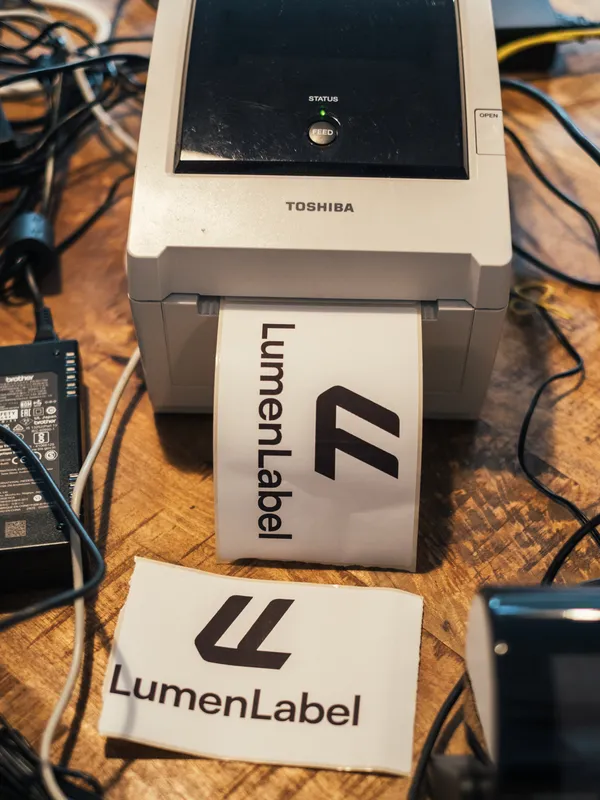
Toshiba TEC B-EV4D.

It was sitting at the other side of the table.

Koert selected this B-EV4D because it differed from the desktop printers that were already on the test bench: it was industrial, included Ethernet and was not supported on the Mac. If this model could work, LumenLabel would immediately become useful for a very different group of printers.

When it arrived, it really was large and solid, with older industrial connections as well as USB. Nothing happened on the Mac. The first test print did come out on Windows. That immediately raised the next question: how cool would it be if this could simply work from the Mac?

Koert also did not want to walk to a Windows computer whenever an IP address or another printer setting needed changing. He wanted to find, set up and use the printer on the local network from LumenLabel.

The B-EV4D was sitting at the other side of the table with a network cable in between. LumenLabel found it on the local network. The first label came out, but the printer then went quiet. After more work, Koert could keep printing and LumenLabel could also see when the cover was open or the printer needed calibration.

Labels came out. From his Mac, across the network, through that old Toshiba. The result for the person using it should remain ordinary: press Print, and the printer prints.

Which labels fit the B-EV4D-GS14?

The GS14 is the 203-dpi direct thermal version. Toshiba specifies media from 25.4 to 112 mm wide and a maximum print width of 108 mm. A 4 × 6 inch shipping label fits within that width.

The printer can use gaps, black marks and continuous media. Select the sensor mode that matches the loaded roll. Maximum length remains outside the public claim until the app profile, manual and tested output mode agree.

How does LumenLabel connect over Ethernet?

Add the printer by IP address and port 9100 when it does not appear automatically. The print job, status questions and final close stay within one session.

If an older interrupted session leaves the printer green but silent, restart it once and check the IP address before trying again. LumenLabel normally waits for Ready itself.

What if the Toshiba is on but does not appear?

First check that the printer and your Mac are on the same local network. Then find the printer IP address and add it manually in LumenLabel.

If the printer stays green but silent after an interrupted print, switch it off and on once. Check the IP address again, then print a single label.

Connect the B-EV4D in four steps.

  1. 01

    Connect the printer and your Mac to the same local network.

  2. 02

    Find or configure the printer IP address and keep TCP port 9100 available.

  3. 03

    In LumenLabel, choose Add network printer and select Toshiba TEC B-EV4D-GS14.

  4. 04

    Check the roll, sensor mode and 1-bit preview, then print one label.

!A native copy run cannot be reliably cancelled once the count has reached the printer. Check one label before starting a large run.

Toshiba B-EV4D questions

01Can I use this Toshiba on my local network?+

Yes. Add the B-EV4D in LumenLabel with its IP address and use port 9100.

02Why does my Mac not show it as a normal printer?+

LumenLabel uses the specific device identity or network address. Add the IP and port 9100 manually when discovery does not find it.

03Can I print 4 × 6 inch shipping labels?+

Yes. The width fits within the 108 mm print area, and a shipping label was used in the physical network and compression test.

04Does the B-EV4D work over USB?+

Use the Ethernet connection described on this page. If you want to try USB, check that combination during the trial.

05Does this cover the TS14 or B-EV4T?+

No. Their resolution or media system differs. Treat those versions as separate models.

Let the old Toshiba print one label first.

Add its IP address, select the roll that is actually loaded and print one label. If the output is correct and the printer returns to Ready, start the run.