HomePrintersBuy

Does the Zebra ZD220 work with LumenLabel on a Mac?

Yes. The Zebra ZD220 has been tested with LumenLabel over USB on a Mac. You can use regular product or shipping labels, calibrate the printer and select your size in LumenLabel.

Tested on real hardware over USB

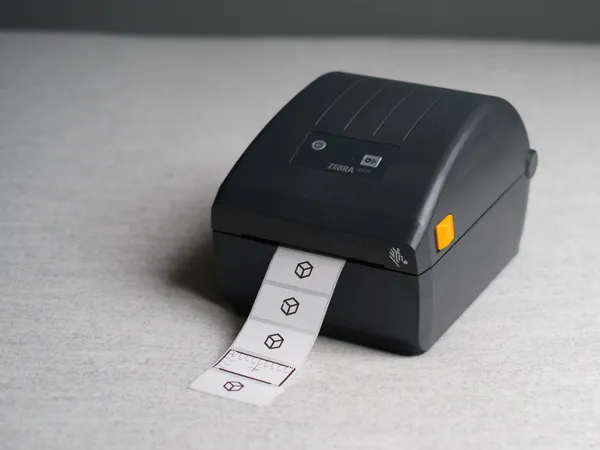
Zebra ZD220 direct thermal desktop label printer
Zebra ZD220.

This is where it started.

With about ten parcels waiting each day, Koert wanted to print those labels one after another from a roll. No ink, sharp and quick. Online research, size, speed and the experience of someone who printed frequently on Windows led him to the ZD220. It cost a little more, but it looked like the kind of printer that should last for years.

The expectation was simple: connect it and print. The Mac detected the printer and a label did come out. Darkness and size were hard to get right, though. Some prints looked reasonable, but barcodes became too thin or too thick. The sharp source file did not arrive on the label one to one.

The ZD220 therefore became the first printer on which Koert worked through the entire LumenLabel route: dimensions, canvas and conversion to physical output. In an early version, he printed a roll numbered 1 through 100 for the parcels, followed by a shipping label. The lines were sharp. So were the barcodes.

LumenLabel grew from that investigation. What appeared on the canvas had to come out at the right size and with sharp lines. That is still the starting point.

Which labels can the ZD220 use with LumenLabel?

The current profile is for the 203-dpi direct thermal version. It has a maximum print width of 104 mm and accepts media up to 112 mm wide. Choose a standard size or save a custom size within the profile limits.

The printer does not measure media width. After calibration, LumenLabel can read the reported label length and match it to a known size. Check the width yourself, then select gap, black mark or continuous media.

Why can a Zebra label start too high or too low?

The distance between labels belongs to the roll, not the printer model. A fixed 3.5 mm correction worked with a 6 mm gap roll, but moved output on the 25 mm labels far enough down to overlap the next label.

LumenLabel therefore does not store one feed correction for every ZD220. Select the correct media mode and calibrate first. Use the manual Y offset for your own roll after that.

What can I do if the ZD220 prints faint or grey?

Check that the print head is clean, the direct thermal material reacts on the correct side and the roll runs straight through the guides. Calibrate again if the printer skips labels or misreads the gap.

Then adjust speed and darkness in LumenLabel. The 1-bit preview shows which dots will print black. Change one setting at a time and make a small test print.

Connect the ZD220 in four steps.

  1. 01

    Connect the ZD220 to your Mac over USB and switch it on.

  2. 02

    Load the roll, close the cover and press Feed once. The printer will often calibrate automatically and feed several blank labels. If the cover has not been opened, this button feeds one blank label.

  3. 03

    Open LumenLabel and select the Zebra ZD220 as the printer in the top-right corner.

  4. 04

    Open the printer settings to check the label sizes and any other settings.

!If you only see a generic USB printer or a different model, do not select the ZD220 at random. Check the model name and attach the diagnostics report to a support request if you are unsure.

Zebra ZD220 questions

01Where can I change the size and darkness?+

Open the ZD220 printer settings in LumenLabel. You can select the size and adjust speed, darkness and position if needed.

02Does LumenLabel work with the Zebra ZD220 on Windows?+

The Windows app includes a profile for the ZD220. Use the trial to check your own printer, cable and roll. Contact us if something is not right.

03Can I print 4 × 6 inch shipping labels?+

Yes. A 102 × 152 mm label fits within the 104 mm print width. The roll, sensor mode and orientation still need to be correct; print one test before a full batch.

04Does LumenLabel also support the Zebra ZD230?+

Yes, there is a profile for the ZD230. That model has not been physically tested yet, so print one label with your own printer first and contact us if something is not right.

05Can LumenLabel detect the label size automatically?+

LumenLabel can read the calibrated length and match it to a known size. The ZD220 does not report the width, so check the packaging or measure the label yourself.

Print one label with your own roll first.

The tested ZD220 is physically here. Your USB cable, firmware and media can still differ. Start with one label. If it is sharp and in the right place, keep going.