
Brother QL-820NWB on your Mac or Windows PC. No driver, no P-touch Editor.
Yes, it works, on Mac and on Windows. LumenLabel speaks the Brother protocol itself, so you do not need the Brother driver or P-touch Editor. I bought this QL-820NWB because it had the most ways to connect, and it became by far the hardest printer I ever got working. Now it prints very stably, including in black and red.
What I tested
- Mac, over USBWorksStraight over USB with no Brother driver, in black and red too.
- Mac, over BluetoothWorksClassic Bluetooth with a six-digit pairing code on the screen, in black and red too.
- Mac, over the networkWorksFound via Bonjour or added by IP address on port 9100, in black and red too.
- Windows, over USB, Bluetooth and networkWorksThe same routes as on the Mac, with no Brother driver, in black and red too.
Try LumenLabel for seven days with your own Brother QL-820NWB
Choose your computer
Bought because it has the most ways to connect
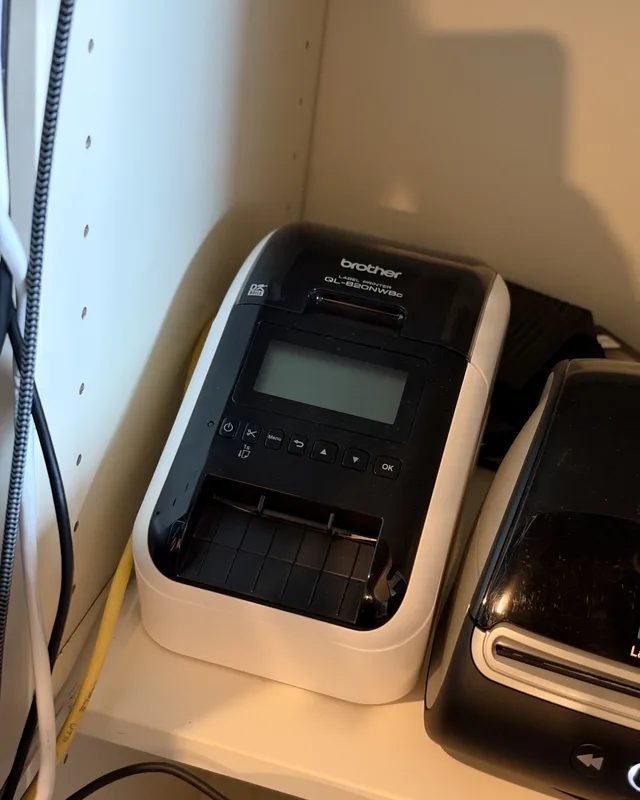
I bought this printer after researching Brother models. It was my first printer with network support, Bluetooth, its own Wi-Fi access point, and Wi-Fi Direct. It had the most ways to connect and its own Brother protocol, which made it a great test candidate.
It certainly lived up to that. In the early days of LumenLabel I tested with this printer more than any other, because I really wanted all those connection methods to work properly. A large part of Bluetooth and network support in LumenLabel was tested and even designed on this QL-820NWB.
Does the Brother QL-820NWB work on a Mac without a driver?
Yes. LumenLabel speaks Brother's raster language directly, so you do not install a Brother driver on your Mac. Plug it in over USB and the app handles the connection itself.
Over Bluetooth it uses classic Bluetooth (SPP). You confirm a six-digit pairing code shown on the printer's LCD screen, and a small built-in helper inside LumenLabel takes care of the link. If the printer is on your network (over Wi-Fi, or Ethernet on the c-variant), you can find it through Bonjour or add it by IP address on port 9100. On Windows all of that works the same way.
An alternative to P-touch Editor and the Brother driver
Many people keep a small printer next to a large printer, and sometimes a separate one for another job altogether. I just want one place for everything.
In LumenLabel you design your label and pick the QL-820NWB, without ever opening P-touch Editor. Text, barcodes, QR codes, and images work the same way as on your other printers, and for this Brother you can also design in black and red.
Printing in black and red, and why it refused at first
Later I discovered that it can print red as well, black and red on the DK-22251 roll. At first nothing came out at all. I kept getting an error (code 07) saying the wrong roll was loaded. I thought: I have this right, the numbers match.
Then I noticed this roll had a special red layer, and it clicked. A two-color roll expects two-color raster data, even when you only want to print black. Ever since we send that format, it prints very stably. With black only I think it looks cleaner. Still, red on a thermal label is pretty unique.
Red on the DK-22251 roll tends to come out lighter and a bit uneven compared to black. Comparing side by side with P-touch Editor gave the exact same result, so that is a limit of the roll and the print head itself. LumenLabel automatically makes red lines one dot thicker so fine text stays readable.
Continuous rolls, a built-in cutter, and roll detection
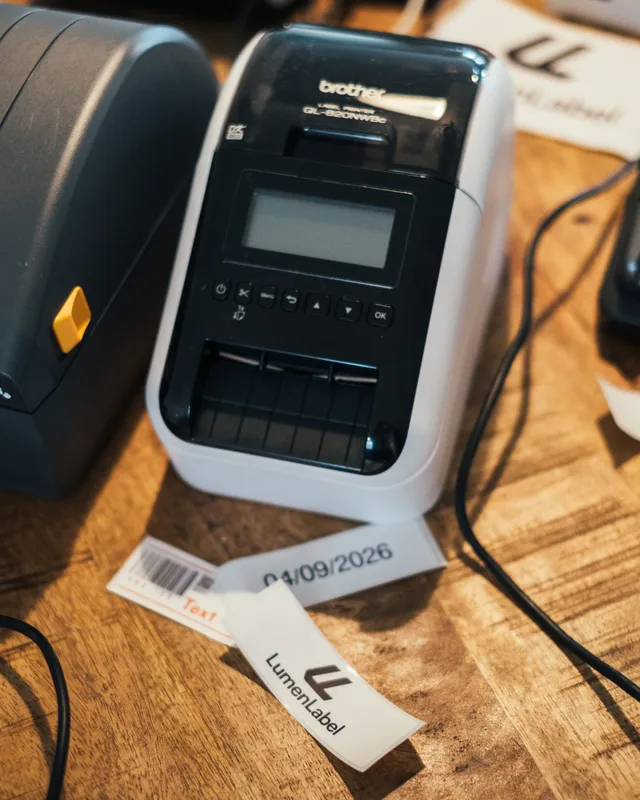
The QL-820NWB handles continuous rolls with a built-in cutter. That was new to me too. It really has the full package of what a label printer can offer. There is no peeler on it. I have another printer for that. Pretty impressive for such a small machine.
It prints at 300 dpi on Brother DK rolls up to 62 mm wide. LumenLabel lists die-cut rolls like DK-11201 (29 × 90 mm) and DK-11202 (62 × 100 mm), continuous rolls like DK-22205 (62 mm) and DK-22251 (62 mm black-and-red), and round DK rolls. I set up the DK-11201 and DK-22251 on paper myself. The wide 102 mm rolls do not fit this model.
A DK roll has no SKU chip, yet the printer reports the width and roll type (continuous or die-cut) itself. Since version 0.6.8 LumenLabel picks up the loaded roll automatically, and on a continuous roll your label comes out the exact length of your design. In the printer settings you choose whether the cutter cuts after every label or once at the end.
Paper margins and my toughest test printer
I measured the actual print areas on paper with a ruler and a calibration label. Brother's 29 mm roll sits asymmetrically on the print head, so the rightmost 1.04 mm cannot physically be printed. On die-cut 29 × 90 mm labels, 84 mm of the length is printable. Along the length the hardware stretches by about 1.25 percent (80 mm becomes 81 mm), which happens in Brother's own software too. LumenLabel uses those real measurements in its catalog.
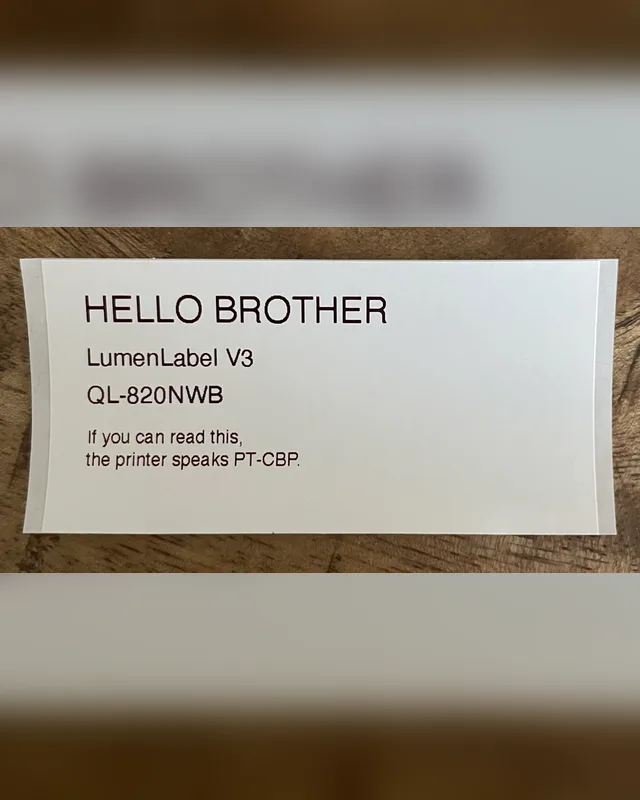
This is by far the hardest printer I ever got working, because it does a lot and is very particular. That is exactly why it is such a good, steady test printer. Once I have it working again in a new build, I know the rest of the app is in good shape too.
The QL-820NWB at a glance
- Print technology
- Direct thermal, no ribbon
- Resolution
- 300 dpi
- Print head
- Up to 62 mm wide (102 mm rolls do not fit)
- Rolls
- Brother DK rolls (die-cut, continuous, and round), including DK-11201, DK-11202, DK-22205, and DK-22251
- Color
- Black, plus black and red on the continuous DK-22251 roll
- Cutter
- Built-in cutter, set to cut after each label or once at the end
- Connections
- USB, classic Bluetooth (SPP), Wi-Fi, and Ethernet (on the c-variant, port 9100)
- Roll detection
- The printer reports the width, length, and roll type directly to LumenLabel
Up and running in four steps
- 1
Connect the QL-820NWB over USB, pair it via Bluetooth (confirm the six-digit code on its screen), or add it over the network.
- 2
Load your DK roll and open LumenLabel. You do not need to install a Brother driver.
- 3
LumenLabel reads which roll is inside and sets your canvas to match.
- 4
Print one test label first, and pick whether the cutter should cut after each label or at the end of a batch.
Questions about the Brother QL-820NWB
Do I still need P-touch Editor or the Brother driver?
No, you do not need P-touch Editor or the Brother driver to design and print labels. You only still need the Brother Printer Setting Tool if you want to change density or the Wi-Fi and Bluetooth settings stored inside the printer itself.
Can I print black and red on a DK-22251 roll?
Yes. You can design directly in black and red in LumenLabel. Because red on this roll prints lighter (in P-touch Editor too), LumenLabel automatically makes red lines one dot thicker.
Why is there no darkness slider for the QL-820NWB in LumenLabel?
Brother's raster protocol has no per-job darkness command. The slider had no effect and was removed for this model; density is stored inside the printer itself.
Does the QL-820NWB cut automatically after every label?
Since version 0.6.8 you can choose in the printer settings whether the built-in cutter cuts after each label or once at the end of your batch.
Can I share the Brother QL-820NWB with a second computer?
Yes. If it is connected over USB to a Mac or Windows PC, turn on sharing in LumenLabel and print from a second computer on the same network. The steps are in Share a printer.
Print one label on your own QL-820NWB
Try LumenLabel for seven days on your own Mac or PC, with your own DK roll. Once the first label comes out sharp and straight, you will know.