
Zebra ZT220 on your Mac or Windows PC. No driver, no ZebraDesigner.
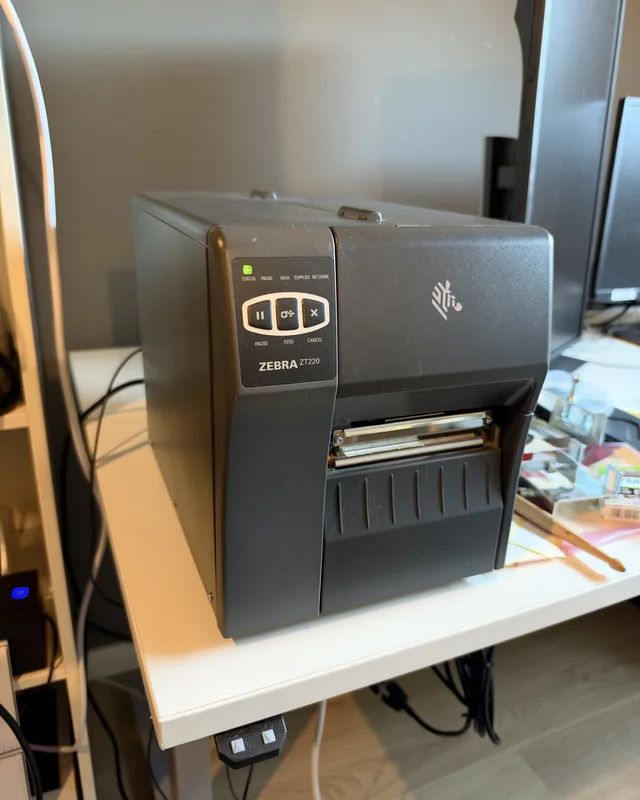
Yes, it works, on Mac and on Windows. LumenLabel speaks Zebra's own printer language, so you do not need ZebraDesigner or Zebra Setup Utilities (Windows only; on a Mac Zebra offers only a CUPS driver). I picked up this big ZT220 at an auction with nearly six kilometers on the clock, and later I printed about 650 address labels on it for my father-in-law.
What I tested
- Mac, via USBWorksMy own 203 dpi ZT220, direct thermal, including calibration and length detection.
- Windows, via USBWorksThrough the standard Windows printer port, with no Zebra driver.
Try LumenLabel for seven days with your own Zebra ZT220
Choose your computer
Bought at an auction, six kilometers on the clock
This big industrial printer was one of five printers I picked up at an auction on October 6. I plugged them all in at once and read out everything they could tell me. This one had already printed over 31,000 labels and nearly six kilometers of stock (5,877 meters, with the cover opened 108 times).
It is also the printer from my video. When I switched it on at home, nothing happened at first. No light, no movement. It just needed a moment to wake up, and then it sprang to life.
Just like my other Zebras, it was easy to get going: plug it in, read what it supports and start printing. Zebra keeps their model numbering fairly logical, which helps a lot.
Does the ZT220 work on a Mac without a driver?
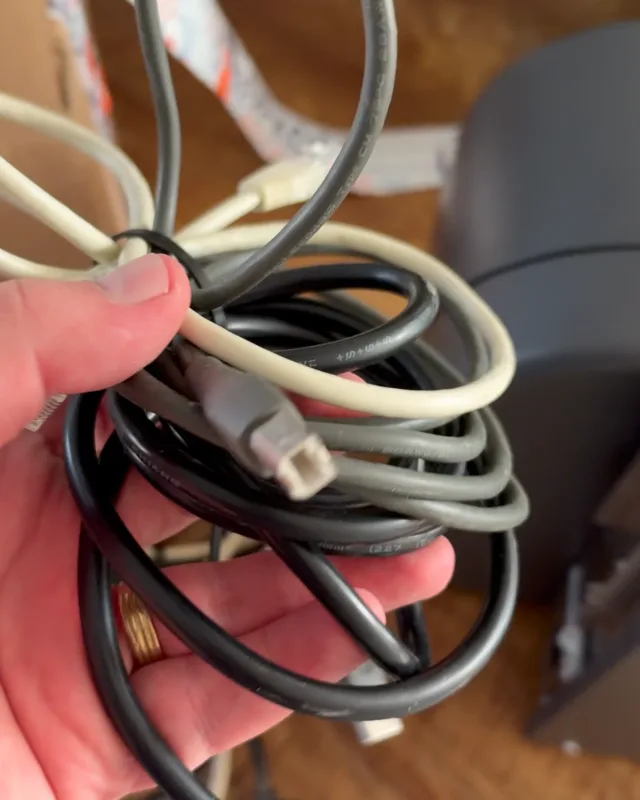
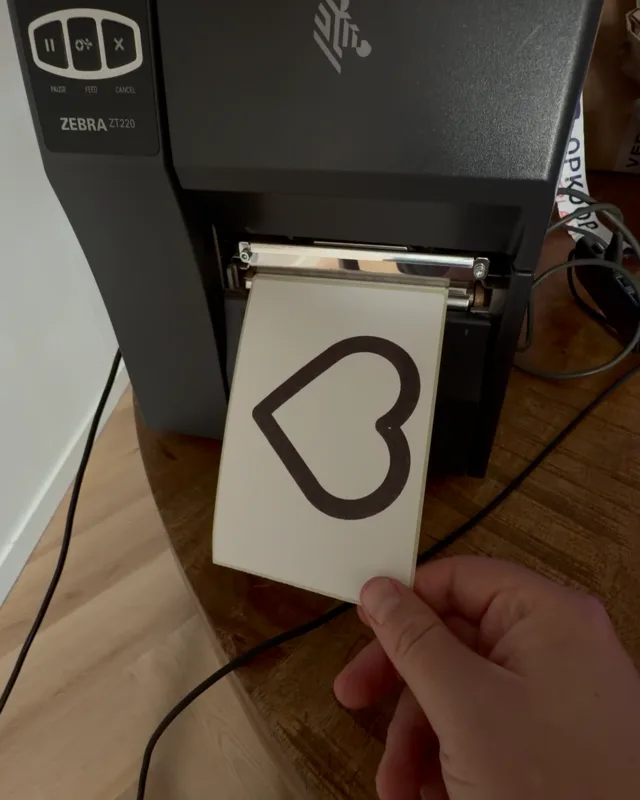
Yes. As soon as you connect the ZT220 to your Mac over USB, LumenLabel recognizes it as a Zebra ZT220 and reads its setup (203 dpi, direct thermal). You do not install a Zebra driver or any utility software.
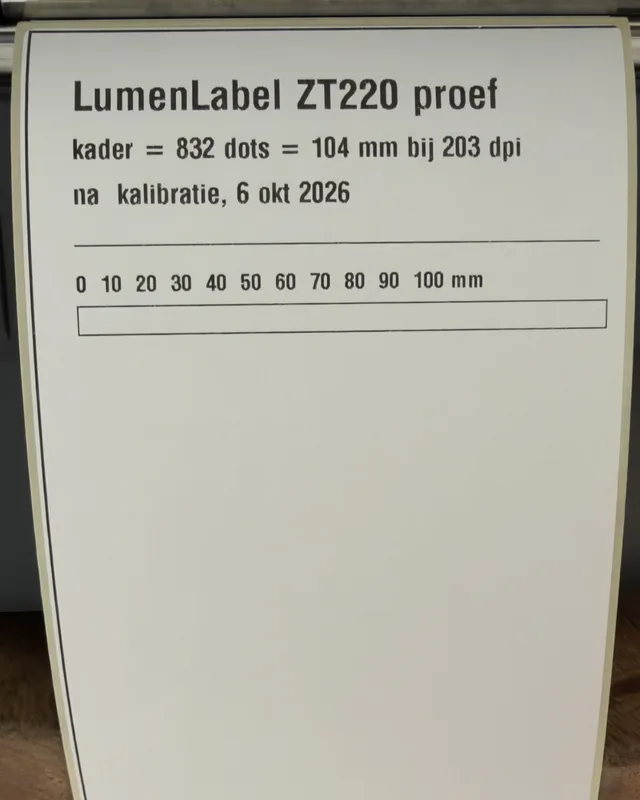
When you load a new roll, click Calibrate in the printer settings and let LumenLabel read the label length straight from the printer. On my 4 × 6 inch roll it measured 153.7 mm and picked 102 × 152 mm automatically. If your ZT220 has a network card, you can also add it over Ethernet using its IP address. On Windows it prints through the standard Windows printer port, with no Zebra driver there either.
An alternative to ZebraDesigner and Zebra Setup Utilities
ZebraDesigner and Zebra Setup Utilities only run on Windows. If you want to use a ZT220 on a Mac, Zebra only offers a CUPS driver.
LumenLabel is a regular app for Mac and Windows. You design your label, drop in an Excel sheet or a shipping PDF, pick the ZT220 and print. Plenty of people have a small desktop printer sitting next to a big industrial one. I just want there to be one place for all of them.
Why did it print so faintly at first?
After that first test I left the ZT220 alone for a while, until my father-in-law asked: "I need to print about 650 address labels, can you do that, or is it a ton of work?" I told him I was happy to try. I had his entire Excel sheet ready in three minutes and could immediately see where text ran past the edge of the label.
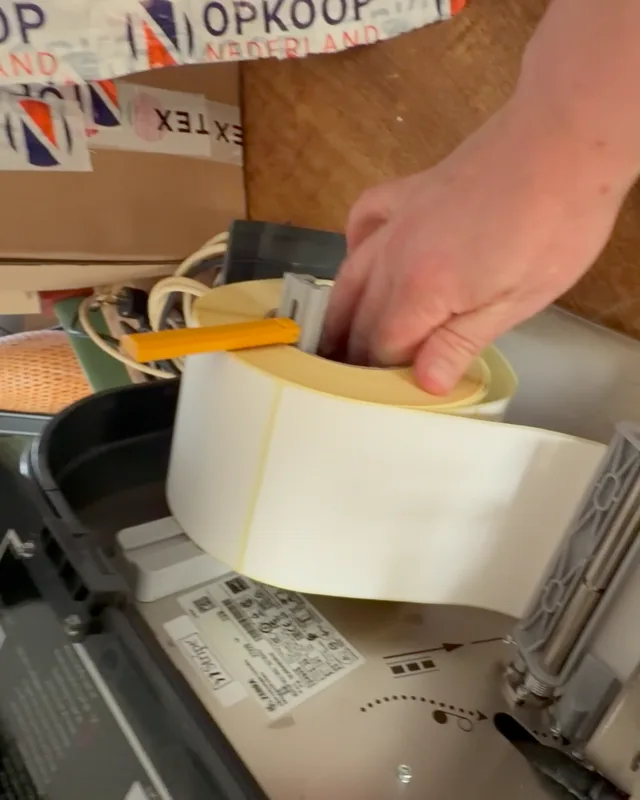
I had received a nice, slightly larger roll of address labels with the printer, so I loaded that one. Every label came out super faint. I searched and searched. The printer itself was fine: the printhead was clean, calibration worked and darkness was already set to 26.
Then I learned that direct-thermal labels can expire if they have been stored too long or too warm. That was the whole problem. I even held a lighter next to a blank label to see how dark it would turn, and it refused to go any darker than light grey.
A whole roll of address labels on the floor
I grabbed a fresh roll, one size smaller, and the addresses still fit nicely. On a ZT220 you can also adjust how hard the printhead presses against the label so the pressure stays even across the width. I dialed that in, lined up the gap sensor slider and set the padding to -2.
At first I accidentally clicked my ZD220 instead, which spat out a few address labels in the wrong size at top speed. Once I picked the right printer, the ZT220 took off like a rocket. Boom, an entire roll of labels piled onto the floor.
My father-in-law spent longer rolling all those address labels back up than it took me to set up the file and print them. A genuinely great experience with the ZT220.
How is it different from a small Zebra?
To me, the main difference between a small desktop Zebra and a big one like this is that it takes much larger rolls and prints faster, up to 6 inches per second.
As a model, the ZT220 supports both direct thermal and thermal transfer (with a ribbon), and you can fit a cutter or a peeler. My own unit is a very basic build: it has none of the ribbon parts or front attachments installed.
The ZT220 in short
- Print method
- Direct thermal, plus thermal transfer (ribbon) if fitted with the ribbon mechanism
- Resolution
- 203 dpi (profile also available for 300 dpi)
- Printhead
- 104 mm wide (my unit reports around 100 mm)
- Labels
- Up to 114 mm wide, such as 4 × 6 inch (102 × 152 mm), with no label chip
- Connection
- USB and Ethernet (by IP address)
- Speed and darkness
- Darkness 0 to 30, speed 2 to 6 inches per second
- Positioning
- Shift X and Y in 0.1 mm steps (from -10 to +10 mm)
- Label size
- LumenLabel reads the length from the printer, and you pick the width
Set up in four steps
- 1
Connect the ZT220 over USB and turn it on. Give it a moment to finish booting; you do not need a Zebra driver.
- 2
Open LumenLabel and select the Zebra ZT220.
- 3
Click Calibrate when you load a new roll and let LumenLabel read the label length.
- 4
Print one test label and adjust darkness or position if needed.
Questions about the ZT220
Does ZebraDesigner work on a Mac?
No, ZebraDesigner and Zebra Setup Utilities are Windows only. On a Mac, Zebra only provides a CUPS driver. With LumenLabel you design and print directly to your ZT220 on macOS and Windows with no driver.
Why is my ZT220 printing very faintly even at high darkness?
If the printer is clean and darkness is turned up, an old roll of direct-thermal paper is often to blame. Hold a lighter briefly near a blank label or scratch it firmly with your fingernail. If it only turns light grey, switch to a fresh roll.
Can the ZT220 also print with a ribbon?
The ZT220 model supports both direct thermal and thermal transfer (ribbon), provided your specific unit has the ribbon hardware installed. LumenLabel only sends a print method command when you choose one or when the printer reports it.
Does LumenLabel also support the ZT210, ZT230 and 300 dpi models?
Yes. All six profiles in the ZT200 series are built into LumenLabel, covering both 203 dpi and 300 dpi.
Can I share the Zebra ZT220 with a second computer?
Yes. If it is connected over USB to a Mac or Windows PC, turn on sharing in LumenLabel and print from a second computer on the same network. The steps are in Share a printer.
Print one label on your own ZT220
Try LumenLabel for seven days on your own Mac or PC, with your own roll. If the first label comes out sharp and straight, you know enough.