
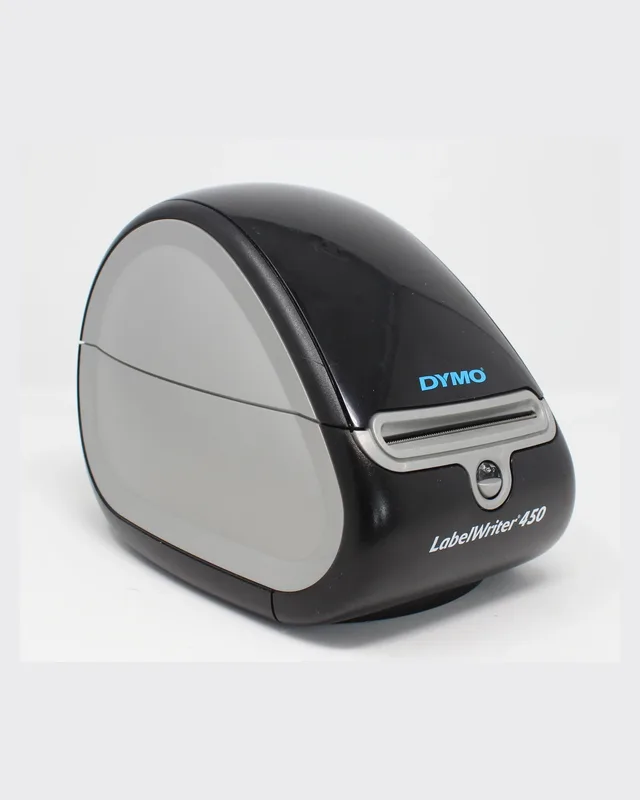
DYMO LabelWriter 450 on your Mac. No driver, no DYMO Connect.
Yes, it works without DYMO Connect. LumenLabel speaks the classic DYMO printer language itself, so you do not need a DYMO driver either. Plenty of people run into old DYMO software that stops recognizing their 450 after a macOS update, even though the printer itself is fine. I do not own a regular 450 myself, so I got this model nearly dialed in together with a user and his ruler.
What I tested
- Mac, via USBWorksTested by a user across several rolls and beta versions, twenty prints without an error.
Try LumenLabel for seven days with your own DYMO LabelWriter 450
Choose your computer
I do not own a 450, so I keep my eyes open
Right now I do not have a 450 or a 450 Turbo of my own. So I look for testers and places that do have them. Whenever I visit somewhere, I always check if they have label printers around. My work as a colorist takes me to different places regularly, and I tell people what I am building. The 450 Turbo sits at my father-in-law's place; that story is already on the site.
When I get emails saying something does not work, it really bothers me. That is the exact frustration I had myself, and the one I want to get rid of. Printers should just work. Period. I only have one computer and I do not own every printer myself, so I need users who think along with me. That is why error messages have a Send to Support button with a code, so I can let people know when I have fixed their issue. Nothing is ever sent automatically; it only goes out if you click that button yourself.
A user with a ruler put us on the right track
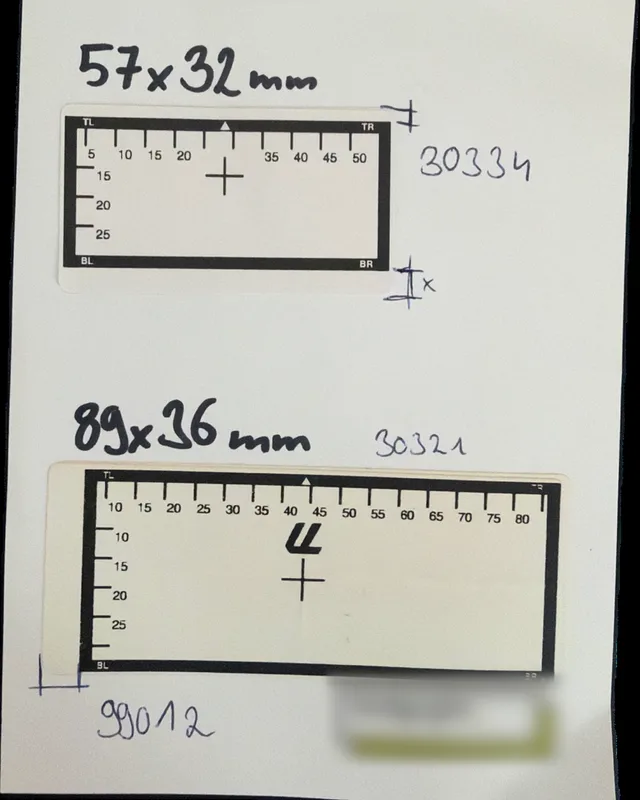
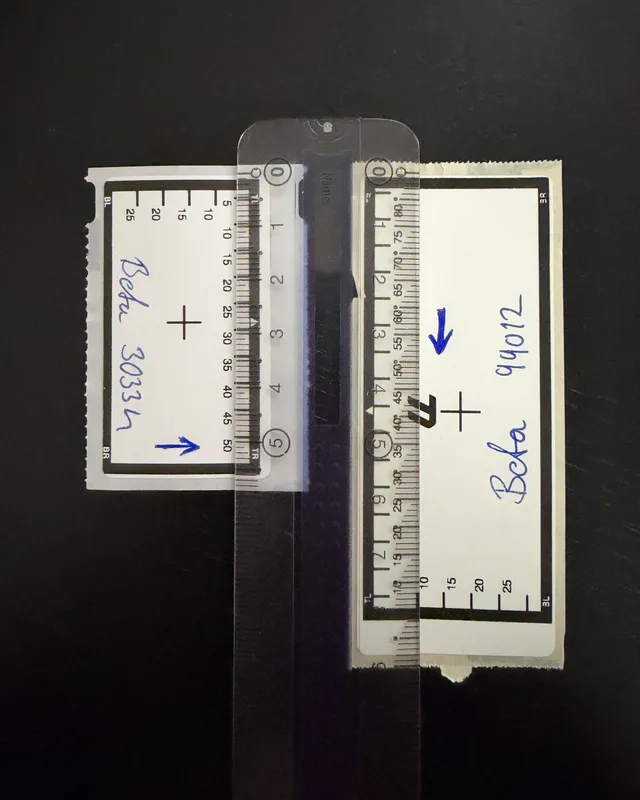
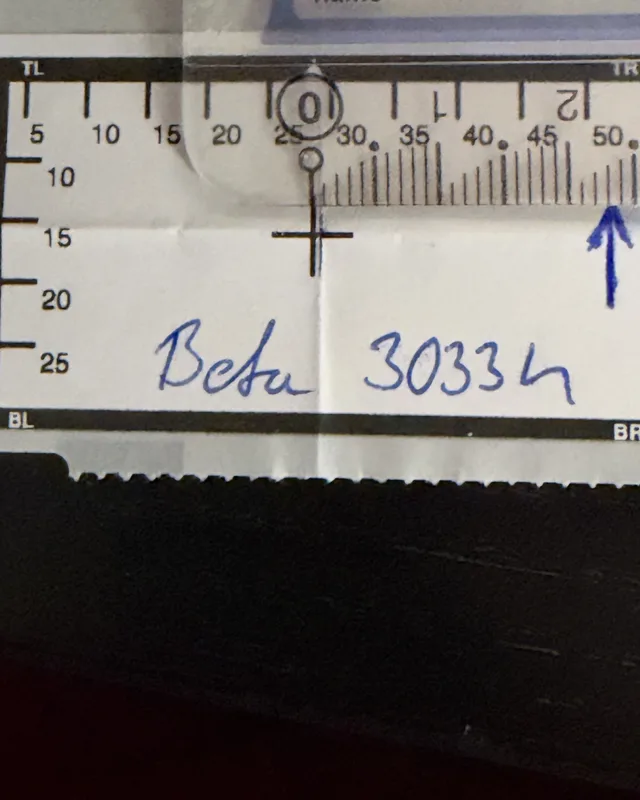
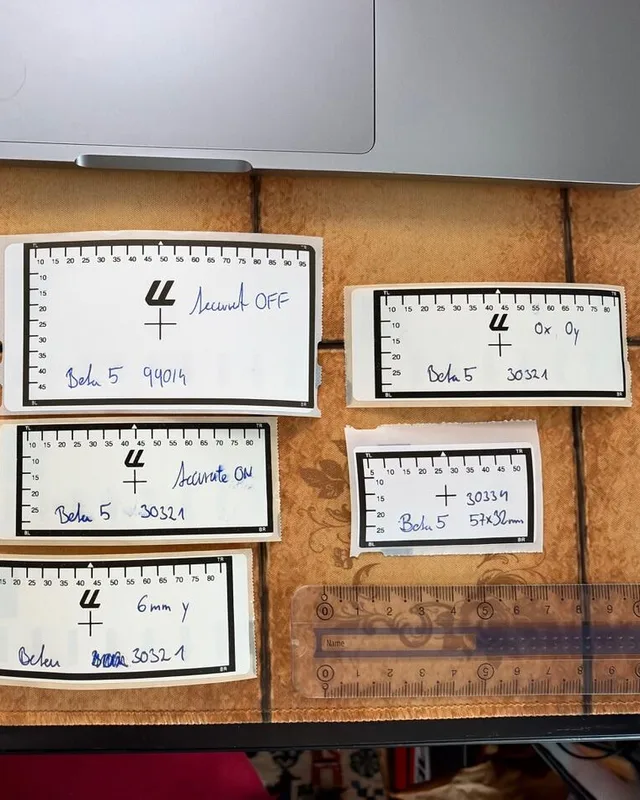
Someone emailed me who owned a regular 450 with several label sizes, and he was happy to test for me. He had already sent a support message showing printed labels in different sizes with a ruler next to them, so I could see exactly what was off. On a 30334 roll, for instance, the print sat 4.3 mm too high.
He did not know a DYMO has margins, and to be completely honest, neither did I: every label size has a different margin at the start. That probably works great for DYMO, and for me it made things pretty complicated, especially for testing. At this stage I cannot afford to keep buying all kinds of label rolls just to check them.
He became a beta tester and helped me through several beta builds for the 450, measuring prints on different rolls like 30334 and 99014. Together we got much steadier 450 prints with proper margins. On the last beta, twenty prints came out without an error.
Does the DYMO LabelWriter 450 work on a Mac without a driver?
Yes. LumenLabel speaks the classic DYMO printer language itself over USB. Plug in the USB cable, turn the printer on, and pick the DYMO LabelWriter 450 in LumenLabel.
You do not install DYMO Connect or any separate DYMO driver. The LabelWriter 450 connects over USB only; there is no network port and no Bluetooth.
LumenLabel runs on Mac and on Windows. The 450 speaks the same DYMO printer language as the LabelWriter 450 Turbo, which I also tested on Windows.
An alternative to DYMO Connect and old DYMO software
Plenty of people find that old DYMO software stops recognizing their 450 after a macOS update. Software support for these printers is fading, and I can see there is real demand for an app that prints to them reliably. That is what I want to build, and I think we are very close.
Many people have a small printer, a big printer, and then another separate printer for something else. I just want there to be one place for all of them. In LumenLabel you design your label with text, barcodes, QR codes, or images, and print straight to your 450.
The gray area and centering on your label
Because every DYMO roll starts with its own margin, LumenLabel (since version 0.6.8) uses each roll's own starting offset, plus a 0.5 mm correction from the paper measurements. LumenLabel also stops at the end of the label, so the print never spills onto a second label.
On the canvas, a gray area shows the strip the printer cannot reach. It is part of the label, it just stays unprinted. You can also turn that gray area off with the Toggle grey unprintable area button, so you see the full white label and can check whether your text looks centered. Center-center alignment works on the shape of the label itself, independent of the margins. That way you get steady centered prints on a DYMO 450.
Sideways, a print can still land up to about 1 mm off center depending on the roll. In the printer settings you can nudge X and Y in 0.1 mm steps, from -5 to +5 mm. Accurate printing is also switched on by default, sending every line the way DYMO itself does for barcodes and images. The beta tester noticed right away that the prints looked crisper.
Which rolls fit, and what about third-party labels?
The LabelWriter 450 prints at 300 dpi with a 57 mm print width (672 dots), on rolls up to 62 mm wide. The common sizes are ready in LumenLabel, including 99010 address labels (28 × 89 mm), 99012 large address labels (36 × 89 mm), 99014 shipping labels (54 × 101 mm), 99015 multipurpose labels (54 × 70 mm), 11354 / 30334 (57 × 32 mm), and 11352 (25 × 54 mm).
This printer has no label chip. It cannot tell the app which roll you loaded, so you pick the roll size yourself in LumenLabel. The nice part is that the 450 also accepts compatible rolls from other brands.
For darkness you get four levels: light, medium, normal, and dark. LumenLabel starts on normal. If a blank label comes out, check that the printable side faces the print head and push the paper far enough into the slot for the printer to grab it.
The LabelWriter 450 at a glance
- Print technology
- Direct thermal, no ribbon
- Resolution
- 300 dpi
- Print head
- 57 mm wide (672 dots)
- Labels
- Rolls up to 62 mm wide, such as 99010 (28 × 89 mm), 99012 (36 × 89 mm), 99014 (54 × 101 mm), and 30334 (57 × 32 mm)
- Connection
- USB (no network, no Bluetooth)
- Label chip
- No chip, compatible rolls from other brands work too
- In LumenLabel
- Four darkness levels (normal by default), X and Y offset in 0.1 mm steps (-5 to +5 mm), Accurate printing on by default
- Label size
- The printer does not report the roll, so you pick the size yourself in LumenLabel
Connect in four steps
- 1
Plug the LabelWriter 450 in over USB and turn it on. You do not need DYMO Connect or a DYMO driver.
- 2
Load a roll with the printable side facing the print head and feed the first label into the slot until the printer grabs it.
- 3
Open LumenLabel, choose the DYMO LabelWriter 450, and pick the roll size you loaded.
- 4
Print one label and nudge the position or darkness if needed.
Questions about the DYMO LabelWriter 450
Do I need DYMO Connect for the LabelWriter 450?
No. LumenLabel speaks the classic DYMO printer language itself over USB. You do not need to install DYMO Connect or a separate DYMO driver.
My Mac stopped recognizing my DYMO LabelWriter 450 after an update. Will LumenLabel still work?
Yes, as long as the printer itself is working fine. LumenLabel skips DYMO Connect and the DYMO driver completely, talking directly to the printer over USB.
Can I use third-party labels in the LabelWriter 450?
Yes. The 450 has no label chip, so it accepts compatible rolls from other brands. Just pick the matching roll size in LumenLabel.
Why is there a gray area on my label in LumenLabel?
That marks the margin the 450 cannot print on, so you can see exactly where your print starts. You can also toggle the gray area off when you want to view the full white label.
My barcodes look thick or cramped in other software. How does LumenLabel handle them?
LumenLabel snaps every barcode bar to whole dots on the 300 dpi head and turns Accurate printing on by default. Print one label and scan it with your phone or scanner to check right away.
Can I share the LabelWriter 450 with a second computer?
Yes. If it is connected over USB to a Mac or Windows PC, turn on sharing in LumenLabel and print from a second computer on the same network. The steps are in Share a printer.
Print one label on your own LabelWriter 450
Try LumenLabel for seven days on your own Mac or Windows PC, with your own roll. If the first label comes out sharp and straight, you know enough.