
Zebra GK420d on your Mac or Windows PC. No driver, no ZebraDesigner.
Yes, it works, on Mac and on Windows. LumenLabel speaks Zebra's own printer language directly. You do not need a Zebra driver, ZebraDesigner or Zebra Setup Utilities. I bought this GK420d secondhand at an auction, discovered it had a peeler, and then gave it to my wife. She now prints her shipping labels on it every day, on her Mac.
What I tested
- Mac, over USBWorksMy own GK420d, in peel and tear-off modes. Used by my wife every day, 41 shipping labels in a row.
- Mac, over the networkWorksAdded by its IP address, 100 × 150 mm shipping label.
- Windows, over USBWorksThrough the standard Windows printer port, with no Zebra driver.
- Windows, over the networkWorksMy own GK420d on Windows.
Try LumenLabel for seven days with your own Zebra GK420d
Choose your computer
Bought at an auction, with no power supply
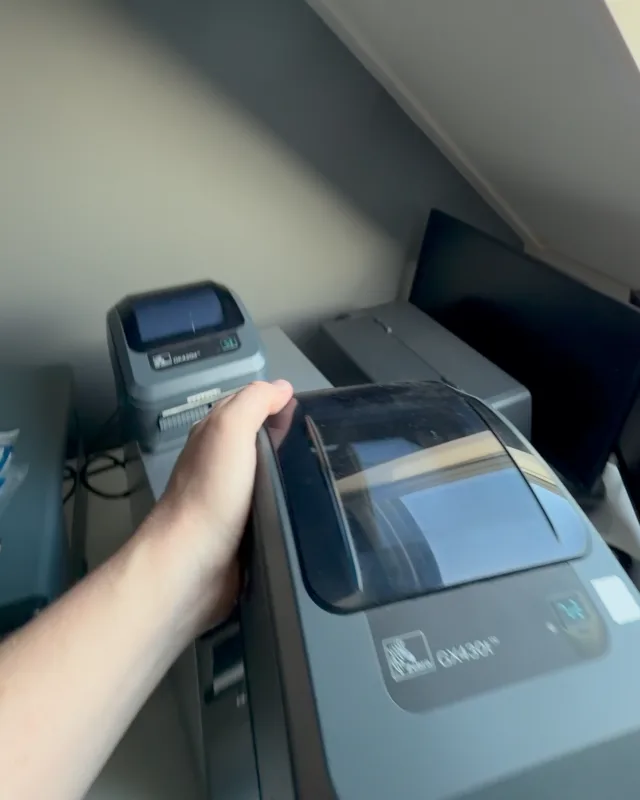
I bought it secondhand at an auction, just like my GX430t. There was no power supply with it. Buying a separate power supply cost almost twice what I had paid for the printer itself, so I put together a 24-volt power supply and cable myself. That still cost money, though it did the job.
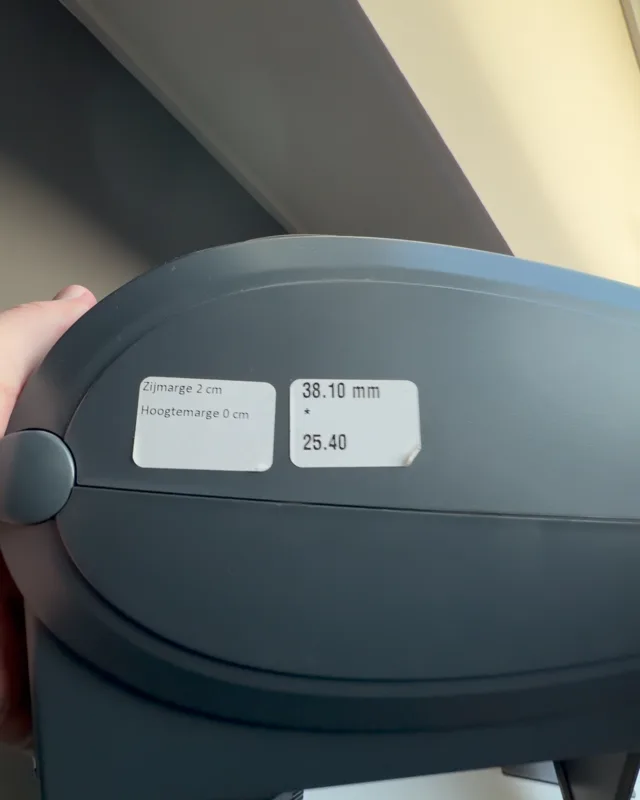
I recognized this printer right away. You see them at a lot of parcel shops, and I had often spotted them at the hospital too. That little green button on the side to pop open the lid. It still had stickers from the previous owner all over it, showing things like margin settings.
It had already printed about 12.5 kilometers. I always find it funny that it measures that in kilometers rather than the number of labels. A cleaning pen took quite a bit of grime off it.
Does the GK420d work on a Mac without a driver?
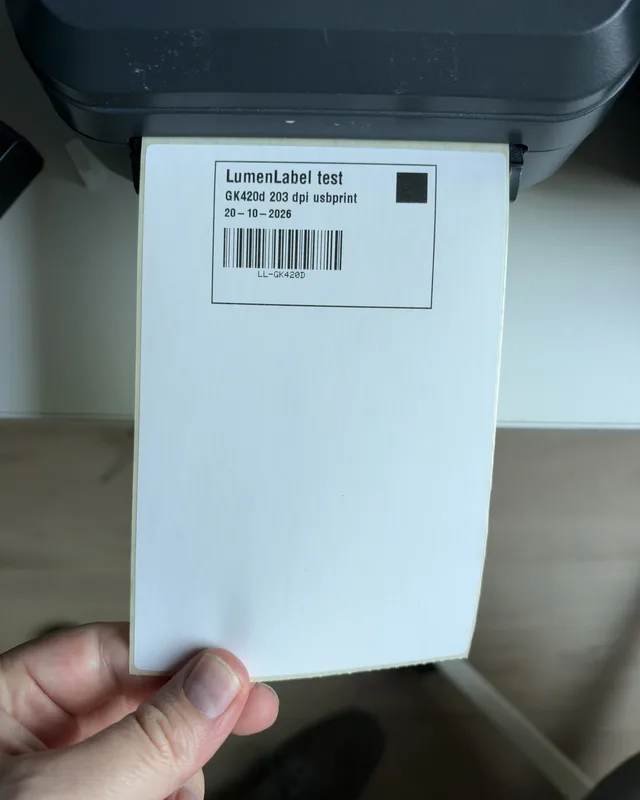
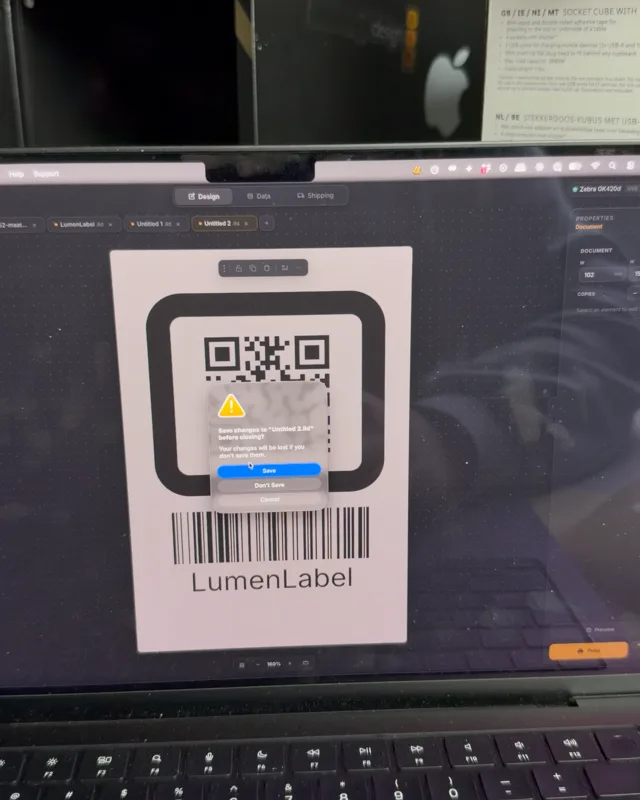
Yes. When I first plugged it in, LumenLabel recognized it as a generic Zebra printer. That same day it had its own profile, with its name and all the settings, and I was printing.
On Mac and Windows, LumenLabel talks directly to the printer over USB. You install no Zebra driver and no utility software. If your GK420d has a network card, you can also use it over the network by adding its IP address. Not every GK420d comes with that card.
An alternative to ZebraDesigner and the Zebra driver
Anyone trying to use a Zebra on a Mac hits a wall pretty quickly. ZebraDesigner and Zebra Setup Utilities are Windows-only. For Mac, Zebra only offers a CUPS driver, and Zebra lists the GK420d itself as discontinued.
LumenLabel just runs on a Mac. You design your label, pick the GK420d and print. Barcodes, QR codes, text, images and shipping labels from a PDF are all built in. On Windows it works the exact same way, with no Zebra driver there either.
What is that fold-out ridged piece on the front?
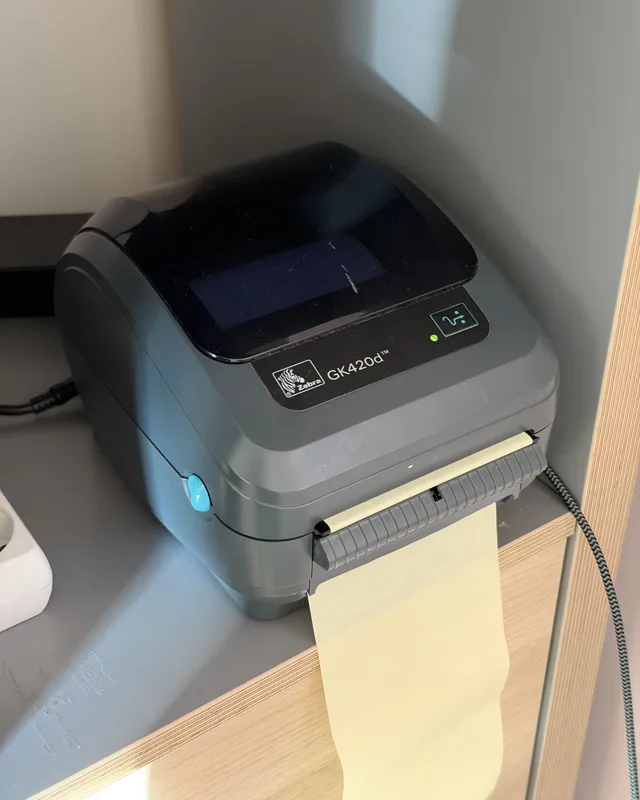
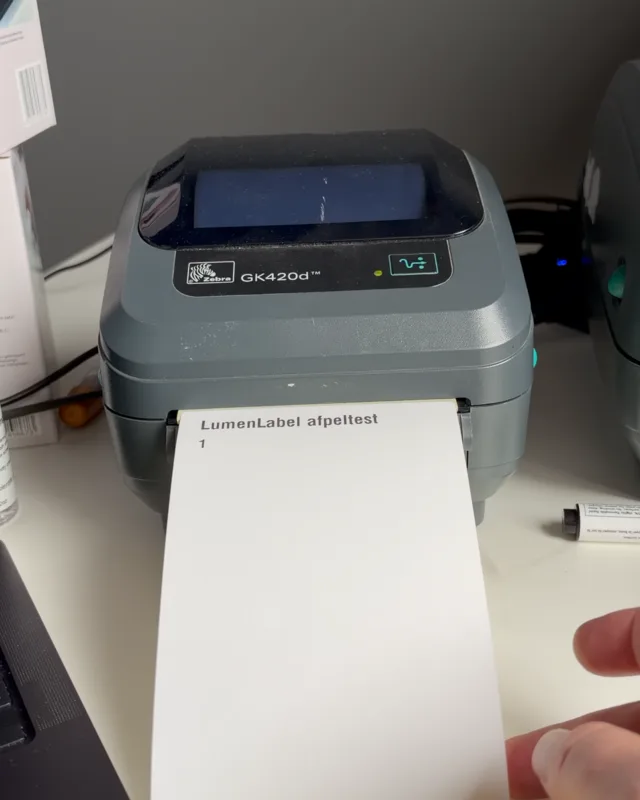
There was something odd on the front that I did not recognize: a kind of fold-out piece with ridges on it. I took a photo and looked up what it was online. Turns out it is a peeler.
You have to fold it a certain way so the printer knows it is in peel mode rather than tear-off mode. Inside there is a tiny sensor that detects whether you have taken the label off. Only then does it print the next one. I did not even know that feature existed, and I really liked it.
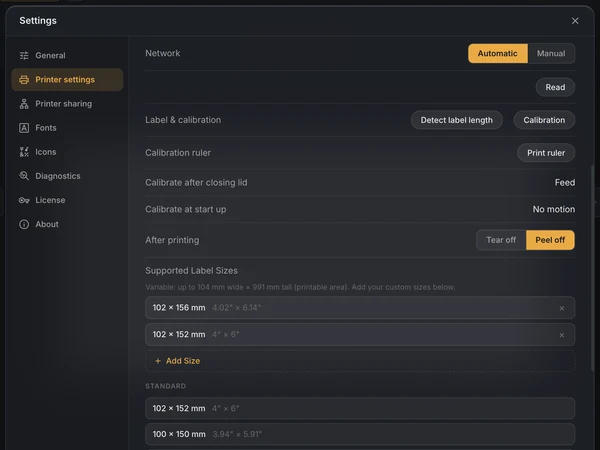
In LumenLabel, you choose between Tear off and Peel in the printer settings as soon as the printer reports that it has a peeler.
A garland of labels, still on the backing paper
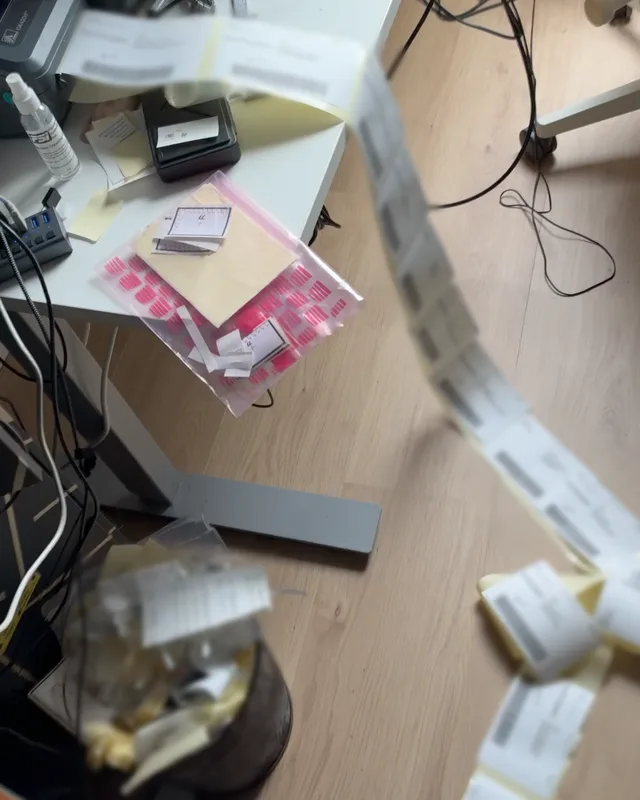
Once I accidentally left it on tear-off mode while the paper was routed through the peeler. It spat out every single label, and the backing paper came out right along with them. I ended up with a whole garland of printed labels barely clinging to the liner.
That could have gone horribly wrong and stuck to everything, yet it came out pretty neat. A very steady printer.
Shipping labels every day for Toverschrift
I have given it to my wife now, because she ships a lot of parcels. That was actually the reason we bought a label printer in the first place. She used to print labels on a regular laser printer, and now she uses the GK420d with its peeler. She uses it every day and gives me plenty of feedback on LumenLabel.
She mainly sells one product: Toverschrift, a Dutch writing booklet that helps children learn to write. On the label she also puts how many booklets go in the parcel, since some people order two, three or four. She loads all the shipping labels at once and sticks them on one by one. As soon as she pulls a label off, the next one rolls out. It just waits until you are ready.
It is one of the nicest printers I own. The print quality is good, it is fast, and it is my only printer with a peeler.
Why did it stop after four or five labels?
My wife had it connected over USB through a small hub built into her monitor, and that plugged into her Mac. Like that, it often stopped after four or five labels. I realized that over a chain like that (through the monitor, through the hub), we were sending too many USB queries to the printer.
We cut back on those queries so the printer gets more breathing room. Since version 0.6.8, it prints every label in a row even through a hub like that. For her, that was 41 in a single run.
How is it different from the Zebra ZD220?
Mostly, as far as I can tell, that the GK420d can have networking and has a little viewing window on top. And you can attach front options to it, like a peeler or a cutter. For a standard label that you tear off over USB, though, there is very little difference.
The GK420d at a glance
- Print technology
- Direct thermal, no ribbon
- Resolution
- 203 dpi
- Printhead
- 104 mm wide
- Labels
- 25 to 108 mm wide, such as 100 × 150 mm and 4 × 6 inch
- Connection
- USB, plus network if a print server card is installed
- Peeler
- Supported, with Tear off or Peel mode
- In LumenLabel
- Darkness 0 to 30, speed 2 to 5 inches per second, position in 0.1 mm steps
- Label size
- LumenLabel reads the length from the printer; you choose the width
Connect in four steps
- 1
Connect the GK420d over USB and turn it on. You do not need a Zebra driver.
- 2
Open LumenLabel and select the Zebra GK420d.
- 3
Pick your label size. If it has a peeler, choose Peel or Tear off in the printer settings.
- 4
Print one label and adjust the position or darkness if needed.
Questions about the GK420d
Does ZebraDesigner work on a Mac?
No, ZebraDesigner is Windows-only. With LumenLabel you can design and print your Zebra labels on a Mac and on Windows without a driver.
Can I print a shipping label from an A4 PDF on the GK420d?
Yes. Open the PDF in the Shipping tab, crop out the label and print it to your 100 × 150 mm roll. While the printer is running, you can keep working in the Shipping tab.
Does the GK420d work over the network too?
Yes, if your GK420d has a print server card. You add it in LumenLabel using its IP address. LumenLabel intentionally sets a static IP address over USB only.
My labels come out faded. Is something wrong with the GK420d?
Often not. An old roll of direct-thermal paper can lose its heat-sensitive coating. Briefly hold a lighter near a blank label; if it only turns light gray, grab a fresh roll. With my ZT220, that was the exact problem.
Can I share the Zebra GK420d with a second computer?
Yes. If it is connected over USB to a Mac or Windows PC, turn on sharing in LumenLabel and print from a second computer on the same network. The steps are in Share a printer.
Print one label on your own GK420d
Try LumenLabel for seven days on your own Mac or PC, with your own roll. If the first label comes out sharp and straight, you know enough.