
A Niimbot app for Mac and Windows. No phone app needed.
Yes, LumenLabel works as a Niimbot app for Mac and Windows, letting you print to your Niimbot over USB or Bluetooth without the phone app. Since version 0.6.9, Mac and Windows get the exact same features, with automatic roll detection and without going through Niimbot's server. I bought four Niimbots myself to build and test this, the B1, B2 Pro, D110-M and M2.
What I tested
- Mac, over USBWorksB1, B2 Pro, D110-M and M2, my own printers.
- Mac, over BluetoothWorksThe same four.
- Windows, over USBWorksThe same four.
- Windows, over BluetoothWorksThe same four.
Try LumenLabel for seven days with your own Niimbot
Choose your computer
Freek, a van full of racks and four Niimbots
Freek Zonderland of SQNC is a fellow filmmaker, and just as enthusiastic as I am. He built his van full of racks and rebuilt his shed, and for that he had to print a lot of labels. So he bought Niimbots, including an M2. When he mentioned them, I thought: I want those in LumenLabel. I wanted him to be able to do that with LumenLabel.
I did not own any yet, so I started looking them up. They are small, relatively inexpensive printers, and quite popular. I had some research done on which models to get, and then I just ordered everything in one go, along with all the rolls.
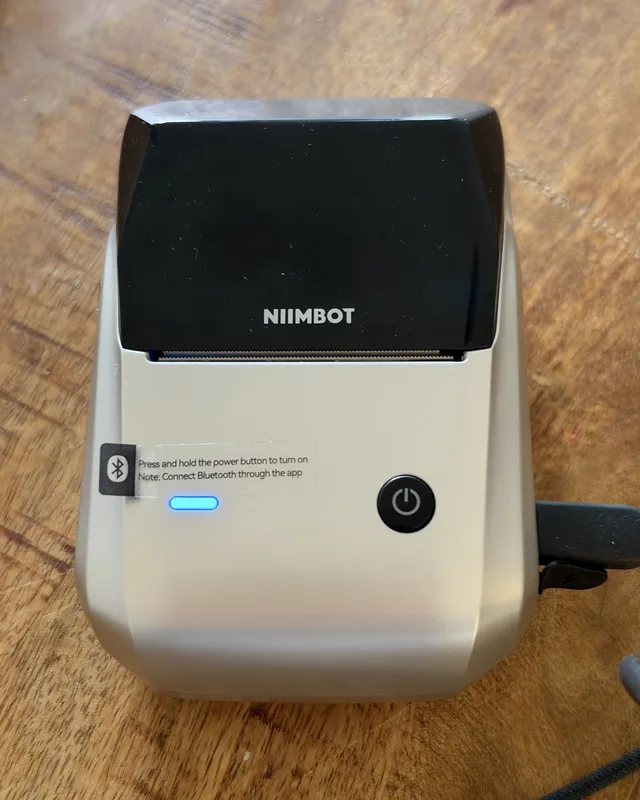
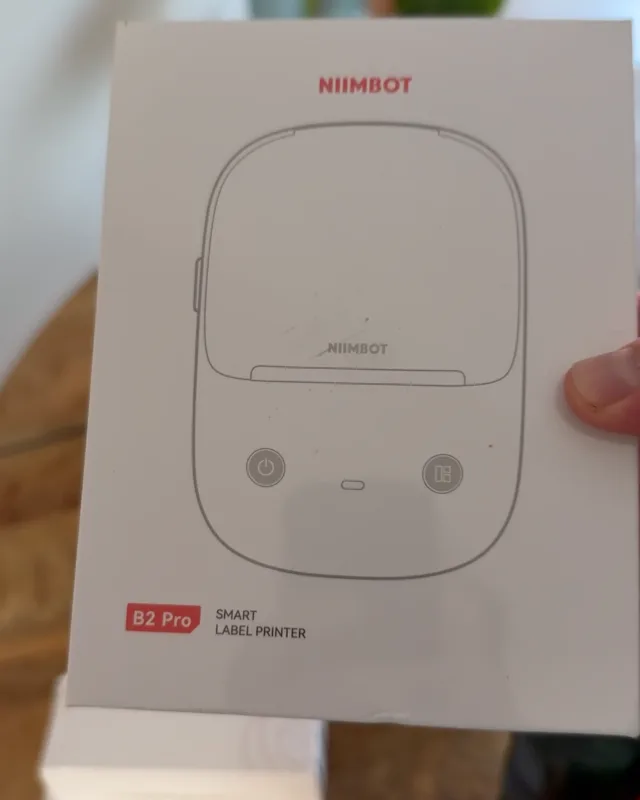
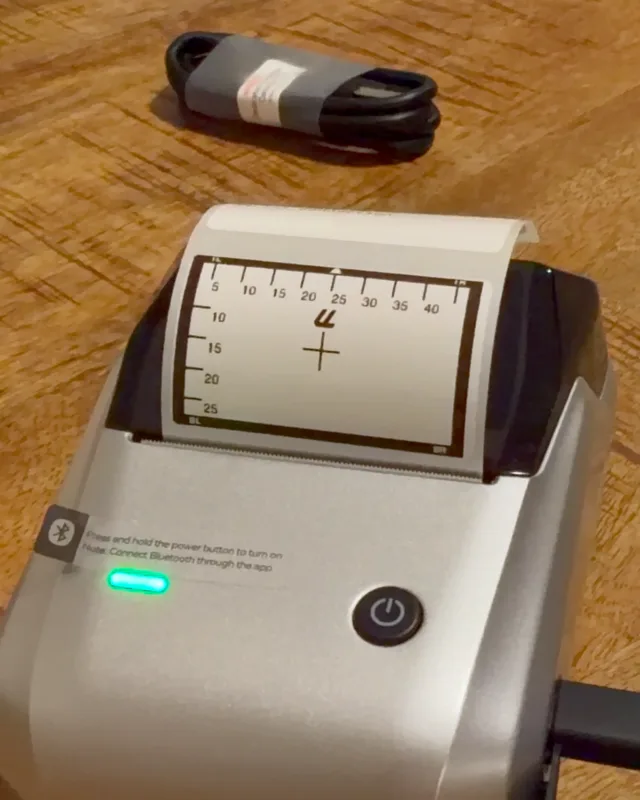
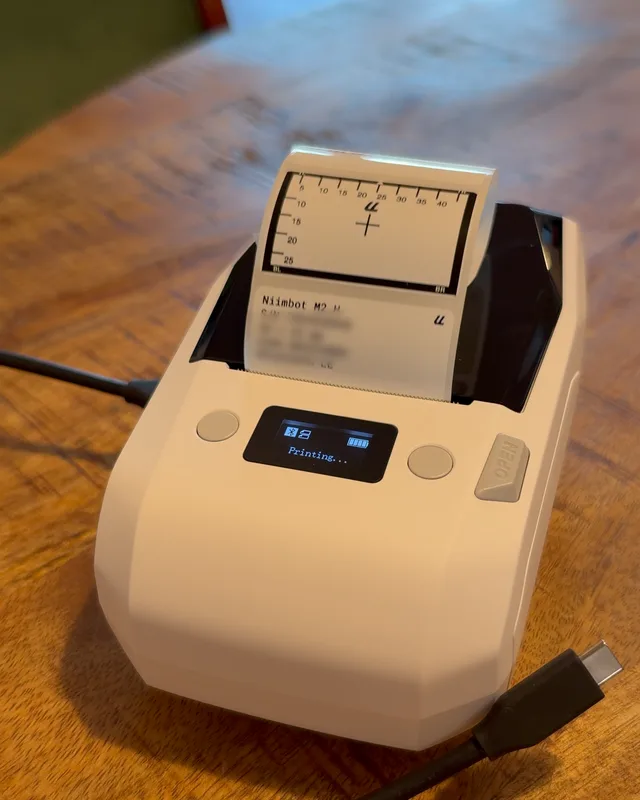
I ended up with four models in three different sizes: the Niimbot B1, the B2 Pro, the Niimbot D110-M and the Niimbot M2. I included the B2 Pro specifically because it speaks a different printer language. The D110-M is the small one for narrow labels of about 12 to 15 mm wide. The M2 uses thermal transfer and prints with a ribbon, and there are even white and gold ribbons for it.
Honestly, they are pretty good little printers and nice to have working. And if they work well, I can easily sell them on again. I have told Freek his printers now work and are supported. So he can use his Niimbots straight from his computer.
Does a Niimbot work without the phone app?
Yes. Since version 0.6.9 on 20 November 2026, LumenLabel prints to Niimbot on both Mac and Windows, over USB and over Bluetooth. Mac and Windows get the same functions at the same time. You do not need the phone app, and LumenLabel never goes through Niimbot's server.
If you plug the same Niimbot in over USB one time and connect over Bluetooth the next, it still shows up as one printer in LumenLabel. You design labels on your computer with text, barcodes, QR codes, images, icons, numbering or data from a spreadsheet. Many people have a small printer, a big printer and then another separate printer for something else. I just want one place for all of them.
Can LumenLabel read the Niimbot roll size?
Yes, automatically, including over Bluetooth. LumenLabel reads the size of the roll directly from the printer or from the roll code, without going through Niimbot's server.
The hardest part of the whole build was the chip on the roll, how many labels came out and the gaps between them. The label type (labels with a gap, a black mark or transparent labels) is taken straight from the roll as well, so you do not have to pick it from a setting. If a Niimbot refuses a roll, LumenLabel tells you why.
Transparent hearts on the light switch
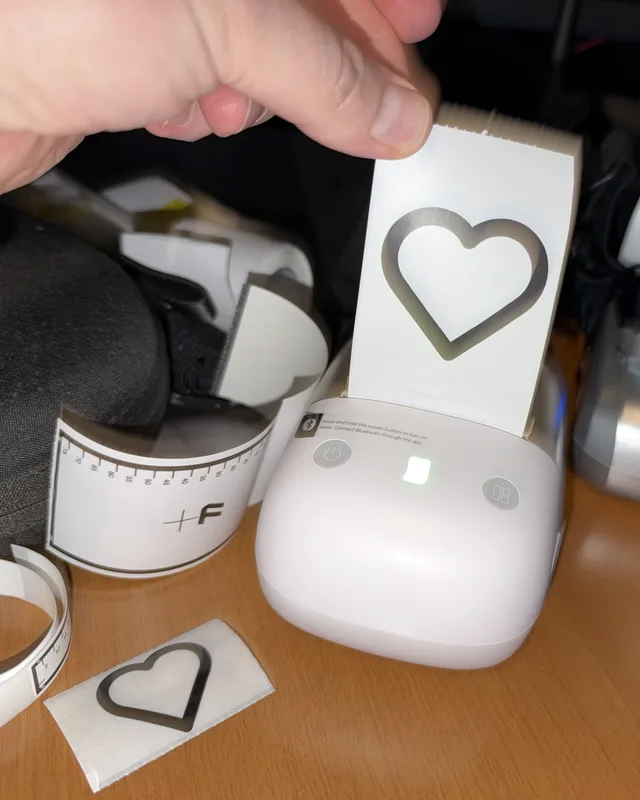
I also bought some extra fun rolls on purpose, including transparent labels. Earlier on, a transparent roll would feed a second, empty label after the first one. That is fixed now: a transparent roll prints one label per print.
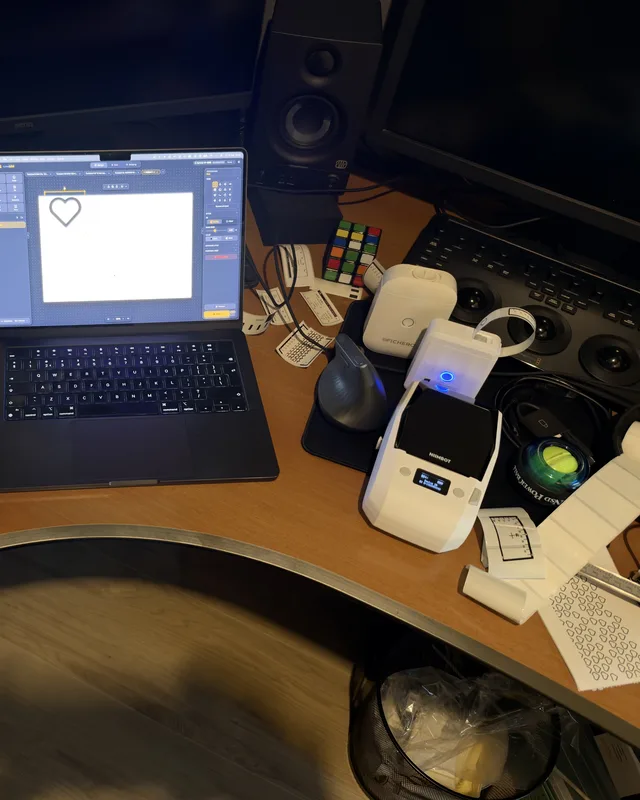
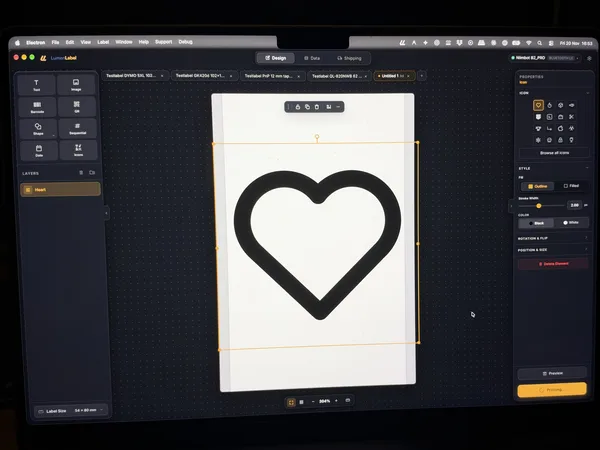
On those transparent labels I printed a little heart for my daughter, and she stuck it on her light switch. So now there is a black heart sitting on her light switch. Honestly, I mostly just print hearts for her. I enjoy that.
Do cheaper rolls without a chip work?
Not yet. I tried to get non-original labels without the Niimbot chip working. I did get them to print in my tests, only it was unstable.
Printers should just work. Full stop. That is why I chose not to support rolls without a chip yet. For now, original rolls with the Niimbot chip are the normal way to print.
Sleep mode, all models and automatic testing
With smaller printers like these, it is hard to decide what to read out and what settings to offer. Do you update firmware or stay away from that, and should that happen inside the app or outside it? Those are hard choices. I decided to let you adjust the sleep mode: after 15, 30 or 60 minutes, or off. Right now that is the only printer setting, alongside automatic label recognition.
I tested all four printers thoroughly with LumenLabel's automatic printer read-out, which reads what the printer reports and prints test labels. Going through them one by one and improving things paid off. LumenLabel also includes a profile for every model in Niimbot's own model list, with label sizes that fit each model's print head.
Niimbot in LumenLabel at a glance
- Supported since
- LumenLabel 0.6.9 (20 November 2026)
- Models
- Profile for every model in Niimbot's model list, including B1, B2 Pro, D110-M and M2
- Connection
- USB and Bluetooth on Mac and Windows (the same printer over both counts as one printer)
- Roll detection
- Automatic, including over Bluetooth, directly without Niimbot's server
- Label types
- Gap labels, black mark labels and transparent labels (read from the roll)
- Rolls
- Original rolls with the Niimbot chip (rolls without a chip are not supported yet)
- Sizes and ribbon
- Every model gets sizes fitting its print head; the D110-M takes 12 to 15 mm labels and the M2 prints with a ribbon (including white and gold)
- Printer setting
- Sleep mode after 15, 30 or 60 minutes, or off
- Label design
- Text, barcodes, QR codes, images, icons, numbering and data from a spreadsheet
Connect in four steps
- 1
Turn your Niimbot on and connect it to your Mac or Windows PC with USB, or use Bluetooth.
- 2
Open LumenLabel and pick your Niimbot. No phone app required.
- 3
Load an original Niimbot roll. LumenLabel reads the label size and roll type automatically.
- 4
Design your label and print.
Questions about Niimbot on Mac and Windows
Do I still need the Niimbot phone app?
No. With LumenLabel you print from your Mac or Windows PC over USB or Bluetooth. LumenLabel reads the roll size from the printer or the roll code itself and never goes through Niimbot's server.
What if my Niimbot model is not in the list?
LumenLabel has a profile for every model in Niimbot's own model list. If your model is still not on the printer list, let us know and we will look at what we can do.
Do third-party rolls without a Niimbot chip work?
Not yet. They worked in my tests, only not reliably enough to support yet. For now, use original rolls with the Niimbot chip.
Can I use my Niimbot B1, D110-M or M2 over both USB and Bluetooth?
Yes, on both Mac and Windows. If you connect the same printer over USB one time and over Bluetooth the next, LumenLabel keeps it as one printer.
What is the difference between the Niimbot D110-M and the Niimbot M2?
The Niimbot D110-M is the small one for narrow labels of about 12 to 15 mm wide. The Niimbot M2 is a thermal transfer printer that prints with a ribbon, including white and gold ribbons.
Print one label with your own Niimbot
Try LumenLabel for seven days on your own Mac or Windows PC, with everything unlocked. Load your own roll and see if the first label comes out right.