
Zebra GX430t on your Mac or Windows PC. No driver, no ZebraDesigner.
Yes, it works, on both Mac and Windows. LumenLabel speaks Zebra's printer language itself, so you do not need ZebraDesigner or Zebra Setup Utilities (both are Windows only anyway), and on a Mac you skip Zebra's CUPS driver too. I bought this GX430t at an auction thinking it was the same as my other Zebra, until it turned out to be my first printer with a ribbon.
What I tested
- Mac, via USBWorksMy own GX430t at 300 dpi with ribbon, including 20 labels in a row with Stop halfway through.
- Windows, via USBWorksThrough Windows' built-in printer port, tested with 12 and 30 labels in a row.
Try LumenLabel for seven days with your own Zebra GX430t
Choose your computer
I thought I was buying two of the same Zebra
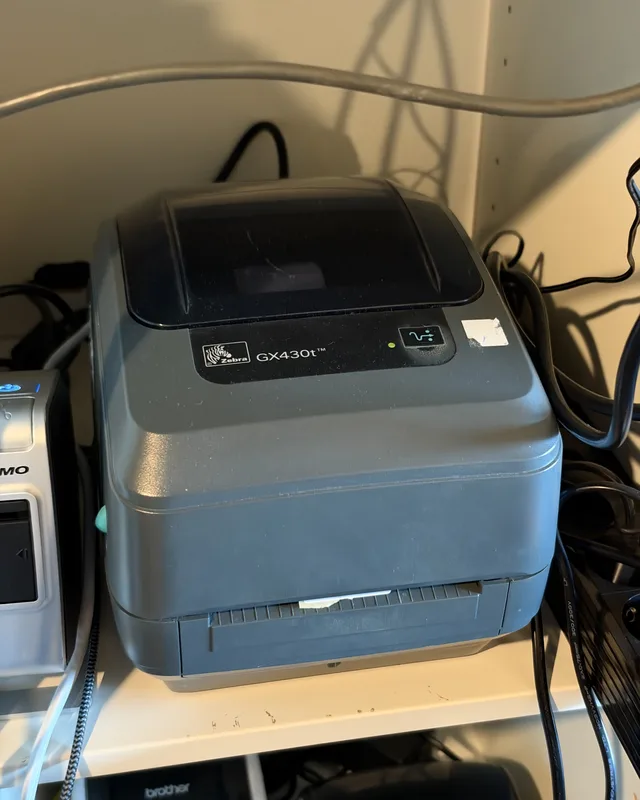
I bought this GX430t secondhand at an auction, just like my Zebra GK420d. It came without a power supply, so I put together a 24-volt power supply and cable myself.
Honestly, I thought they were more or less the same printer. All those model numbers, just digits and letters: the 5XL, the 450, the 220, the PnP. I was not really familiar with them yet. I figured I was buying two of the same, maybe one a bit bigger or faster.
It turned out to be a thermal-transfer printer, my very first one with a ribbon. It already had 6.2 kilometres of printing on the counter. It is much bigger and takes up more room on a desk. Still, I was really glad to have it, because I could test how thermal transfer works and how you load the ribbon. Getting it going was just like the other Zebra: plug in and print.
Does the Zebra GX430t work on a Mac without a driver?
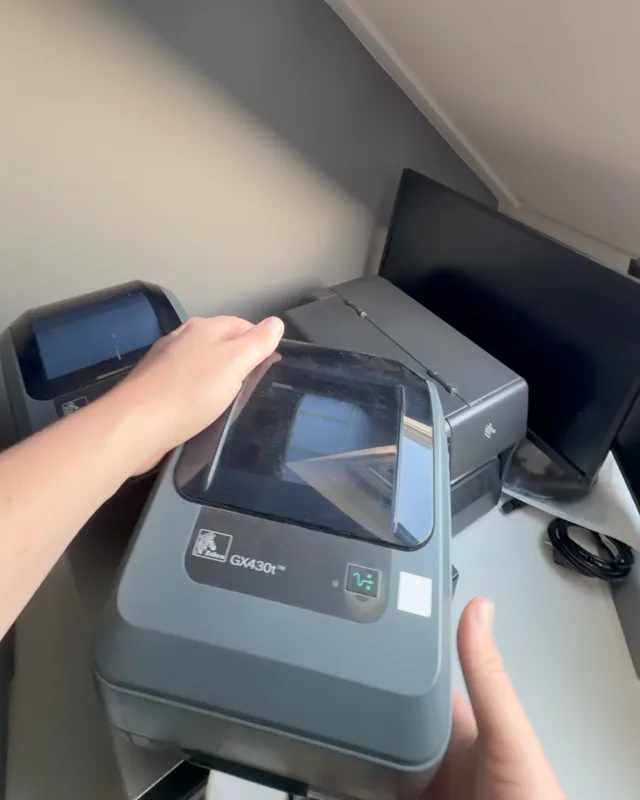
Yes. On a Mac, LumenLabel talks directly to the GX430t over USB. You do not install a Zebra driver or utility. On Windows, it goes through Windows' built-in USB printer port, also with no separate Zebra driver.
On my Mac, I tested it with a run of 20 labels and hit Stop halfway through. On Windows, it ran batches of 12 and 30 labels in a row, even when I briefly pulled the USB cable out for a second. Every number still printed once.
Besides USB, the GX430t has a wired network port. In LumenLabel you can add it by IP address on port 9100. This model has no Wi-Fi or Bluetooth.
An alternative to ZebraDesigner and Zebra Setup Utilities
If you want to use a Zebra printer on a Mac, you hit a wall quickly. ZebraDesigner and Zebra Setup Utilities are Windows only. For Mac, Zebra only offers a CUPS driver.
LumenLabel is a regular desktop app for Mac and Windows with Zebra's ZPL language and a 300 dpi profile for the GX430t built in. Many people end up with a small printer, a big printer, and another separate printer for something else. I just want one place for all of them. Printers should just work. Full stop.
Why did it stutter every two labels at first?
At first, it stuttered. Zebras are almost too easy to test because they behave so well, so a printer that stutters actually makes for a better test. When everything goes smoothly, you have to invent edge cases yourself, and problems that show up on their own are worth a lot more.
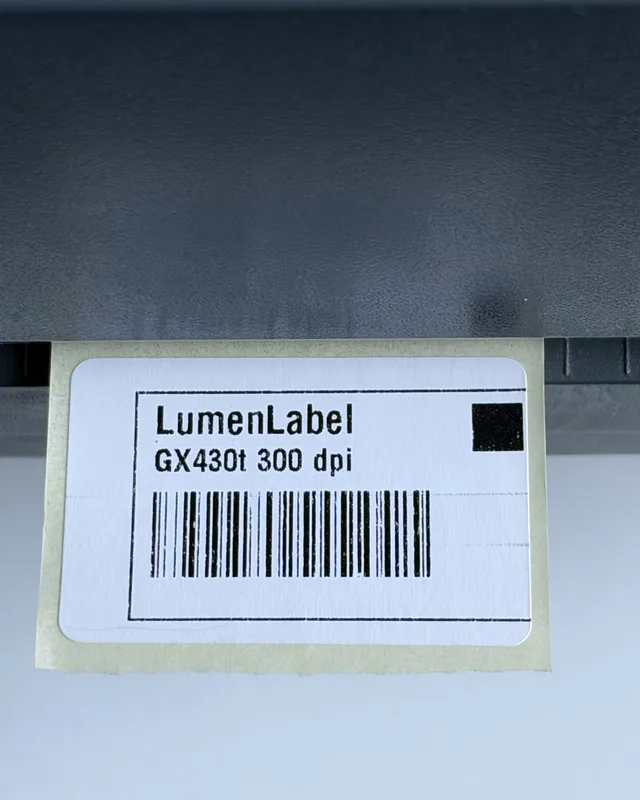
A small 40 × 25 mm label at 300 dpi came out to 35 KB as plain hex. The GX430t printed faster than the app could feed it, pausing after every two labels. Since version 0.6.7, LumenLabel sends compressed images (Z64, down to 1.3 KB per label) with a three-label buffer. After that, it ran smoothly from start to finish.
Because a couple of labels are already waiting in that buffer, hitting Stop lets the printer finish what is already on the way. In my test that was two labels, leaving the last one under the printhead.
Getting tiny text sharp at 300 dpi
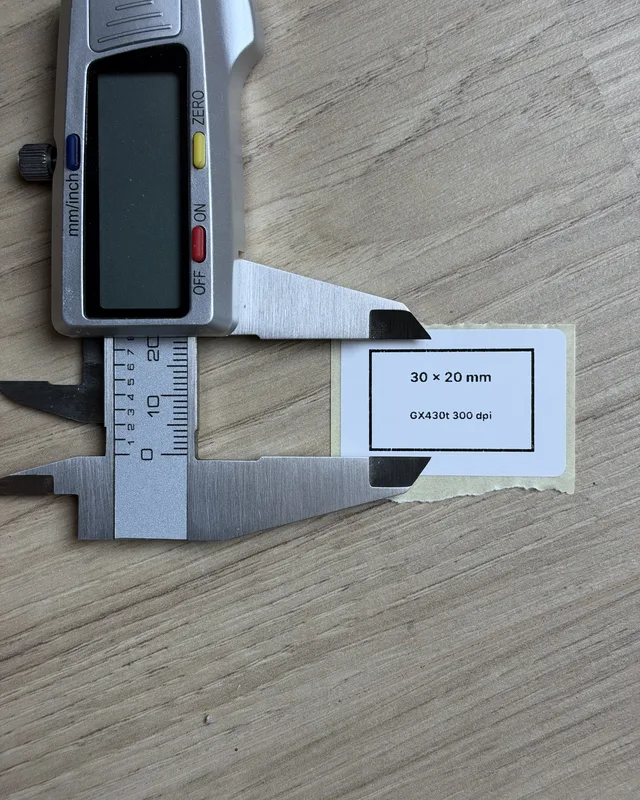
What I spent the most time on with this printer is readability. It had tiny labels loaded (like 51 × 25 mm or 40 mm wide rolls), and at the smallest font sizes I could barely read the text anymore. Precisely because this printer is 300 dpi, I did a lot of testing to make small letters clearer in LumenLabel.
I compared four different text rendering recipes on paper, and the winning tweaks shipped in version 0.6.8. I also found that cranking up darkness is not always sharper. Darkness runs from 0 to 30 (default 15), and speed runs from 2 to 4 inches per second (default 4).
One more detail that only showed up on paper: the printer itself reports 12 dots per millimetre (304.8 dpi). We built a test version using that number, I measured the printed label, and 300 dpi was clearly more accurate. We reverted it right away.
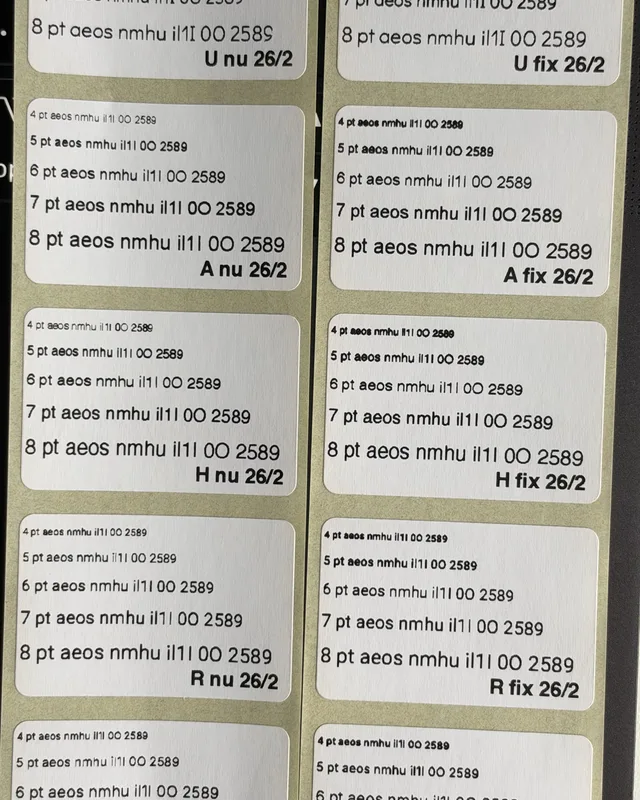
Printing with a thermal-transfer ribbon
In LumenLabel, the GX430t defaults to thermal transfer (with ribbon), though it can also print direct thermal without a ribbon. When the ribbon runs out, LumenLabel shows a ribbon-out alert in the status pill.
In my view, labels printed with a thermal-transfer ribbon hold up much longer, even in heat or cold and in direct sunlight. I am glad this printer is sitting in my cabinet now. I just need to order new labels and ribbon soon, because the ribbon is almost empty. That comes with the territory when you want to test properly.
The GX430t at a glance
- Print method
- Thermal transfer (with ribbon, default) or direct thermal
- Resolution
- 300 dpi
- Printhead
- 108 mm wide (1280 dots), 104 mm print width in LumenLabel
- Labels
- 25 to 108 mm wide and 6 to 991 mm long, such as 51 × 25 mm
- Connection
- USB and wired network (no Wi-Fi or Bluetooth)
- Ribbon
- Supported, with a ribbon-out alert in LumenLabel
- In LumenLabel
- Darkness 0 to 30, speed 2 to 4 inches per second, position in 0.1 mm steps (-10 to +10 mm)
- Label size
- LumenLabel reads the length from the printer, you pick the width (no label chip)
Set up in four steps
- 1
Connect the GX430t via USB to your Mac or Windows PC and switch it on. No Zebra driver needed.
- 2
Load your label roll and thermal-transfer ribbon if you use one, open LumenLabel, and pick the Zebra GX430t.
- 3
In printer settings, choose thermal transfer (with ribbon) or direct thermal, and set your label size.
- 4
Print one test label and adjust the position or darkness if needed.
Questions about the GX430t
Does ZebraDesigner work on a Mac?
No. ZebraDesigner and Zebra Setup Utilities are Windows only, and on a Mac Zebra only provides a CUPS driver. With LumenLabel you design and print on both Mac and Windows without a Zebra driver.
Does the GX430t print at 300 dpi without stuttering?
Yes. Since version 0.6.7, LumenLabel sends 300 dpi labels compressed (Z64) with a three-label buffer, so even small labels print continuously without pausing every two labels.
Why do one or two extra labels come out after clicking Stop?
To keep printing smoothly, a few labels are already queued in the printer's buffer. After you click Stop, LumenLabel stops sending new ones; the printer only finishes what was already on the way and leaves the last label under the printhead.
Can the GX430t print without a ribbon?
Yes. The GX430t supports both thermal transfer (with ribbon, the default in LumenLabel) and direct thermal on heat-sensitive labels. Just pick the matching method in printer settings.
Can I share the Zebra GX430t with a second computer?
Yes. If it is connected over USB to a Mac or Windows PC, turn on sharing in LumenLabel and print from a second computer on the same network. The steps are in Share a printer.
Print one label with your own GX430t
Try LumenLabel for seven days on your own Mac or PC, with your own roll and ribbon. If the first label comes out sharp and straight, you know enough.